RFQ Settings
Configure user assignments and regional settings for RFQ responses.
rfq-permissions-listView the list of RFQ assignment settings.rfq-permissions-viewView the details of an RFQ assignment setting.rfq-permissions-createCreate RFQ assignment settings.rfq-permissions-updateEdit RFQ assignment settings.rfq-permissions-deleteDelete RFQ assignment settings.supplier-store-listView your connected client stores.
Follow along to configure RFQ settings.
Open in new tabOverview
RFQ settings decide who on your team handles requests. Each setting links a connected store to a group of users and the countries or regions they cover. The settings apply to RFQs, RFIs and RFPs alike.
Settings control three things:
- Whether buyers can invite you. A buyer can only select your company for a request in a store where you have an RFQ setting.
- Who is notified. When a buyer sends you a request, the invitation email goes to the users in each setting that covers the store and the request's delivery country or region.
- Who can see and respond. Each user only sees, and can only respond to, requests whose delivery address is in a country or region covered by a setting they belong to.
If you have no RFQ settings, or none that cover a country, your team won't see requests for that country, even if a buyer invited you.
Creating RFQ Settings
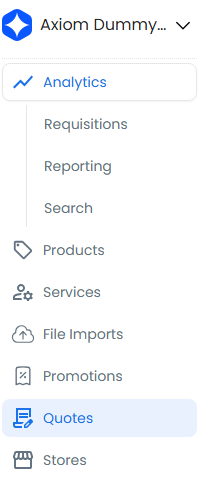
- Select Request Responses in the navigation, then select Request Settings. You can also select Settings on the Request Responses page.
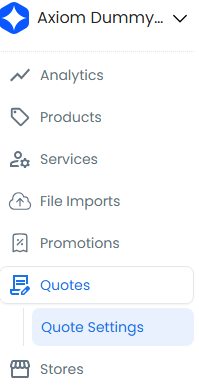
- The Quote Settings page opens. Use the store selector to see the settings for each connected store.
- Select New Setting.
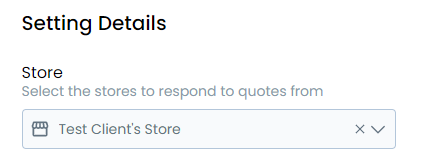
- On the Store tab, select the store to respond to requests from, then select Continue.
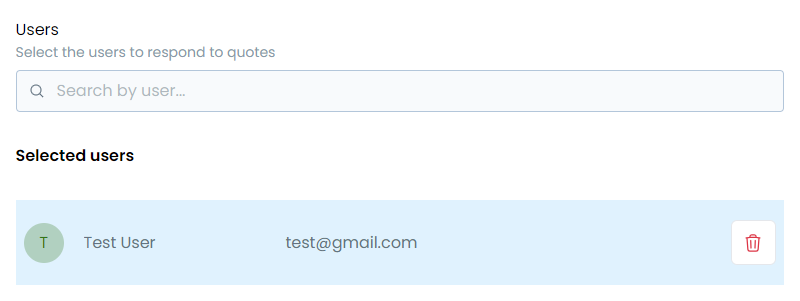
- On the Users tab, search for and select the users who will respond to requests. Select at least one user, then select Continue.
-
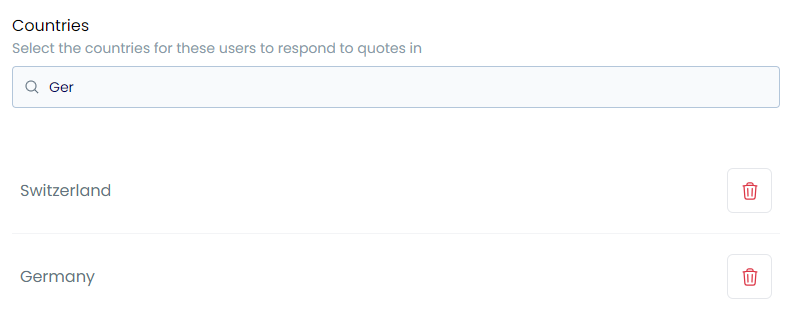
On the Countries & Regions tab, choose the geographic coverage:
- Select a Country to cover the whole country.
- Also select a Region to cover only that region of the country.
- Select Add another country or region to add more rows.
Add at least one country or region, then save the setting.
Managing RFQ Settings
The settings list shows each setting's Users, Countries, Regions and when it was last Updated. From the list, you can:
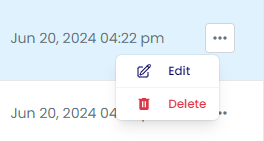
- Edit a setting: select it, or choose Edit from its actions menu. Saving replaces the setting's users, countries and regions with your new selection.
- Delete a setting: choose Delete from its actions menu and confirm.
- Create new settings with New Setting.
Tip
Review your RFQ settings when team members join or leave, so that invitations reach someone who can respond. See Find Requests for where requests appear once they arrive.