Exports
Get your data out of the platform as CSV — one export at a time, ready when you are notified.
supplier-export-requestRequest a data export.supplier-export-request-listView the list of export requests.supplier-export-request-download-fileDownload completed export files.supplier-export-cancelCancel an in-progress export.
Follow along to export your data.
Open in new tabOverview
As a supplier you can export your data to CSV files for use in spreadsheets, reporting tools or other business systems. Exports run in the background, so large data sets are handled for you, and you are notified when a file is ready to download.
Every export type has its own reference page describing each column in the file and the filters available when generating it.
Available exports
| Export | Description |
|---|---|
| Product | Your full product catalogue, one row per product, including identifiers, descriptions, codes and classification data. |
| Enriched Product | Your products with additional enriched and normalised data such as cleaned units and classification codes. |
| Offer Approval | The approval status and history of the product and price offers you have submitted to customer stores. |
| Price Insight | Pricing analytics shared with you by your customers, for competitive and market analysis. |
| Order Log | A line-level log of orders you have received through the platform. |
| Order | Order headers for orders placed with you, including status and payment status. |
| Purchase Order Line | Individual purchase order lines from orders placed with you. |
| Invoice Line | Invoice line items related to your orders. |
| User Group | The user groups configured for your team and their members. |
| API Log | A log of API requests made by your team's integrations. |
Most exports accept an optional row limit to cap the size of the file, and several accept date ranges or status filters. The reference page for each export lists what applies.
Exporting a file
- Select the Settings icon in the left sidebar

- Navigate to the Files menu in the sidebar
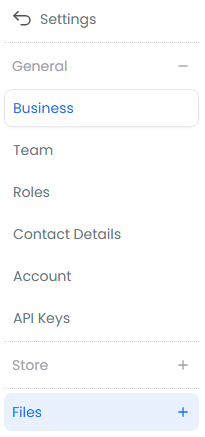
- Select Exports

- Select Export to start a new export

- Select the data type you want to export
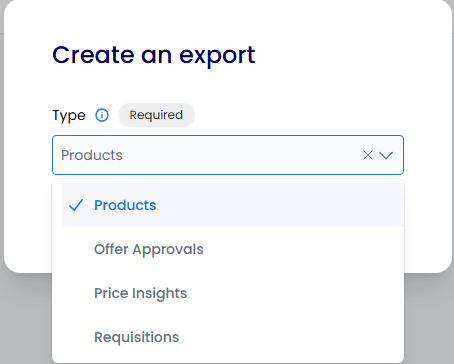
- Set any filters or a row limit, then select Generate to create the export
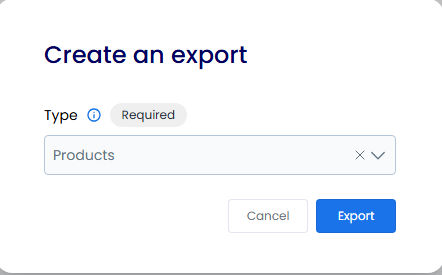
- Download the file once the export shows as Completed

How an export progresses
Exports are processed in the background through a fixed set of steps:
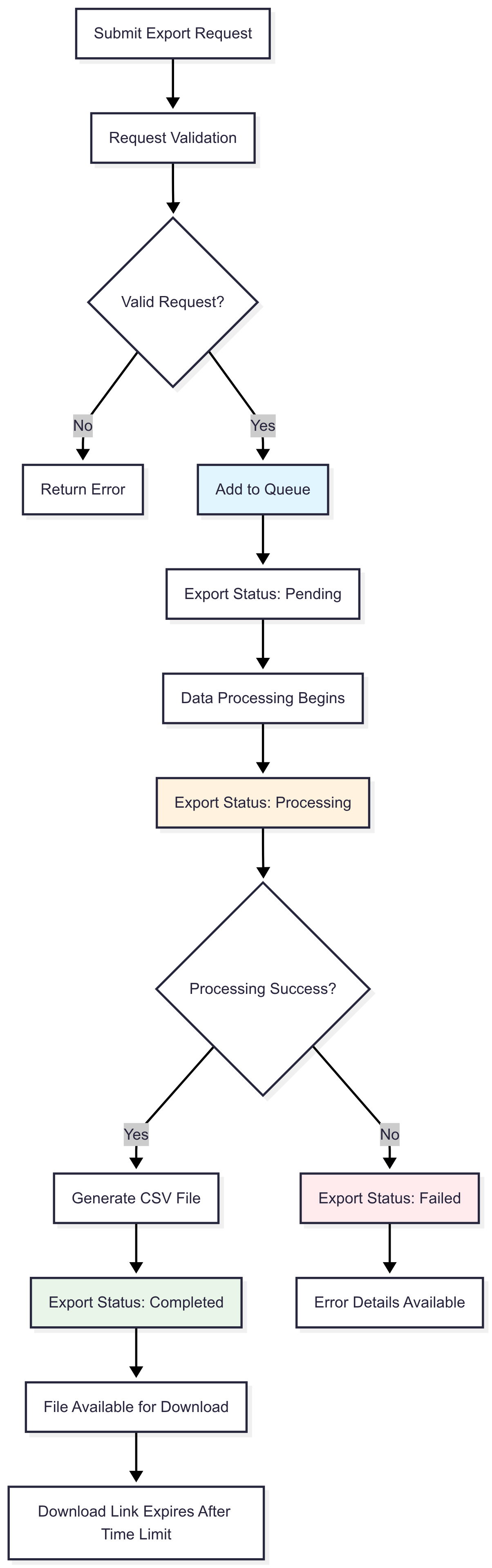
- Request submitted — the request is validated and queued.
- Processing — the platform gathers and formats your data. Large exports can take several minutes.
- Ready — you are notified that the file is available.
- Download — the file stays available for a limited time.
Export statuses
| Status | Meaning |
|---|---|
| Pending | Waiting in the queue to be processed. |
| Processing | Your data is being gathered and written to the file. |
| Completed | The file is ready to download. |
| Failed | Something went wrong. Try again with a smaller data set or different filters, and contact support if it keeps failing. |
| Cancelled | You cancelled the export before it finished. |
File format
Every export is a CSV file with the same conventions:
- Header row — the first row contains the column names. The reference page for each export explains every column.
- UTF-8 encoding — international characters and symbols are preserved.
- Comma separated — values are separated by commas, in standard CSV format.
- Quoted text — values containing commas or special characters are enclosed in quotes.
Files open in Excel, Google Sheets and any tool that reads CSV.
Tips & good practice
- Download promptly. Export files are only kept for a few days after completion. If you need a permanent copy, download it and store it yourself.
- Filter before you export. Date ranges and status filters keep files small and make them faster to generate and easier to work with.
- Check the status before downloading. Only a Completed export has a file behind it. A failed or cancelled export has nothing to download.
- Use the reference pages. Column names in the file are documented on each export's reference page, which saves guessing at what a column holds.
- Schedule regular exports of critical data. Regular exports of your catalogue and orders give you current data for decision-making and a reliable backup outside the platform.
Troubleshooting
How long do exports take? Small exports of under a thousand rows usually complete within a few minutes. Larger exports can take ten to thirty minutes depending on the amount of data and system load.
I can't start a second export. Only one export can run at a time. Wait for the current export to reach Completed, Failed or Cancelled, or cancel it, before starting another.
My export failed. Try again with a smaller data set, a narrower date range or a row limit. If it keeps failing, contact support with the export type and the filters you used.
The download link has gone. Files expire a few days after completion. Generate the export again to get a fresh file.
I can't see the Exports page or the Export button. Your role is missing one or more of the export permissions listed at the top of this page. Ask an admin on your team to grant them. See Supplier Roles & Permissions.
Need help?
If an export is stuck or a file does not contain what you expected, contact support with the export type, the filters you applied and the time the export was created.