Store Connections
Every client store you sell through starts with a connection request — find, join, and manage your stores from one page.
supplier-store-listView your connected client stores.store-accessible-listView the client stores available to connect to.store-accessible-createRequest access to a client store.supplier-store-disconnectDisconnect from a client store.
Follow along to connect with a store.
Open in new tabOverview
Suppliers sell through client stores, and every store relationship goes through an approval-based connection. You request access, the store operator reviews the request, and once approved you can publish products, services and store-specific prices into that store.
From the Stores page you can:
- Browse available stores — discover marketplaces that are open to supplier applications.
- Submit connection requests — apply to join a store directly from the platform.
- Track approval status — follow pending requests until they are approved or rejected.
- Manage connected stores — review and configure your active store relationships.
How a connection works
Each connection moves through the same steps:
- Request access — you submit a connection request to a store.
- Pending approval — the request waits for the store's operators to review it.
- Approved or rejected — the store operator accepts or declines the request.
- Active connection — an approved connection lets you offer products and services in that store.
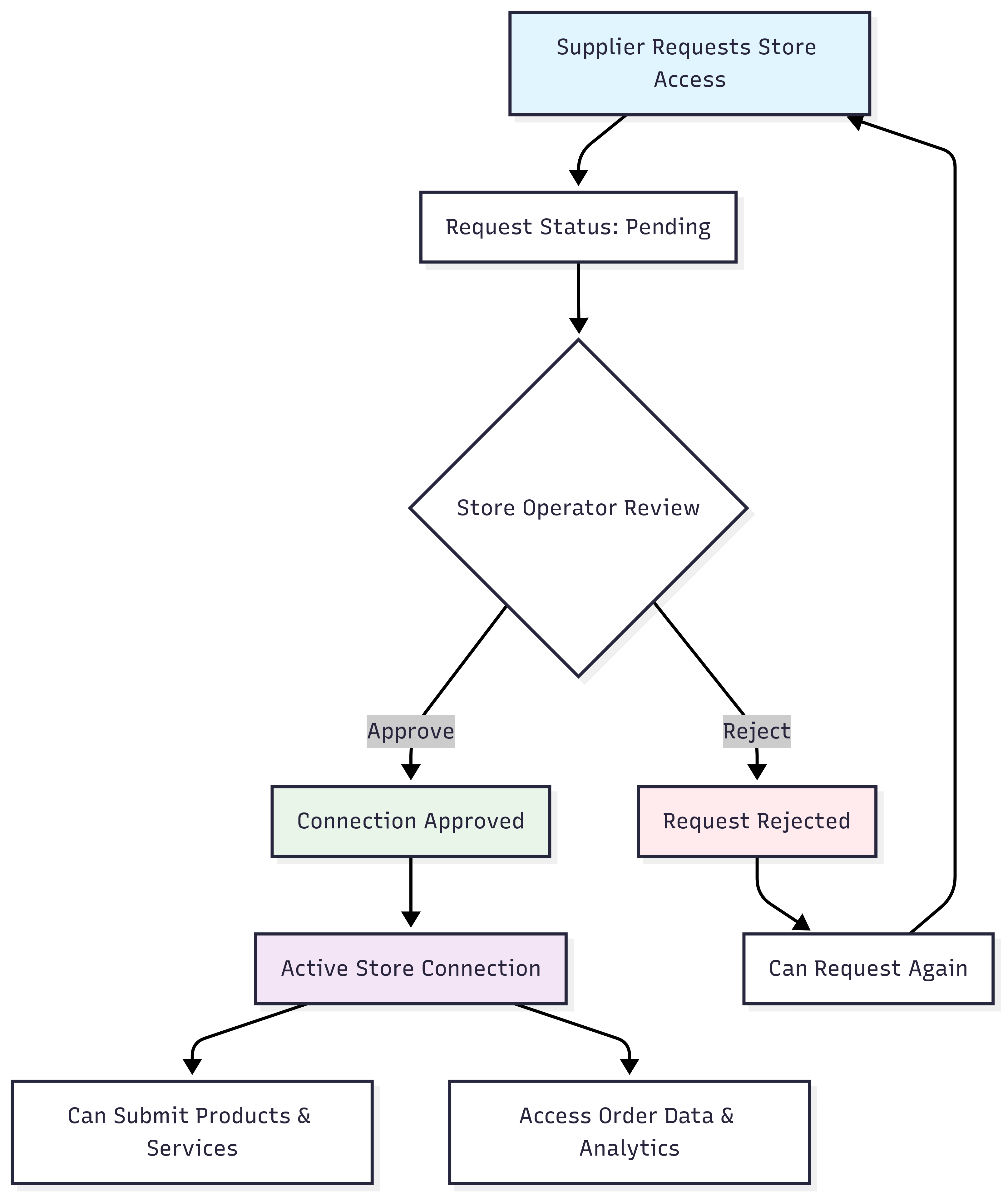
Connection states
| State | Meaning |
|---|---|
| Pending | The request has been submitted but not yet approved. It appears in the Pending tab. |
| Approved | The connection is active. The store appears in the Connected tab and you can offer into it. |
| Disconnected | The connection has been removed, by you or the store. You can request access again at any time. |
Connecting to a store
- Select Stores from the navigation menu
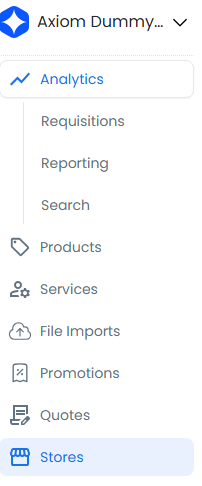
- Select the Available tab

- Locate the store you want to connect with and select Request to Join
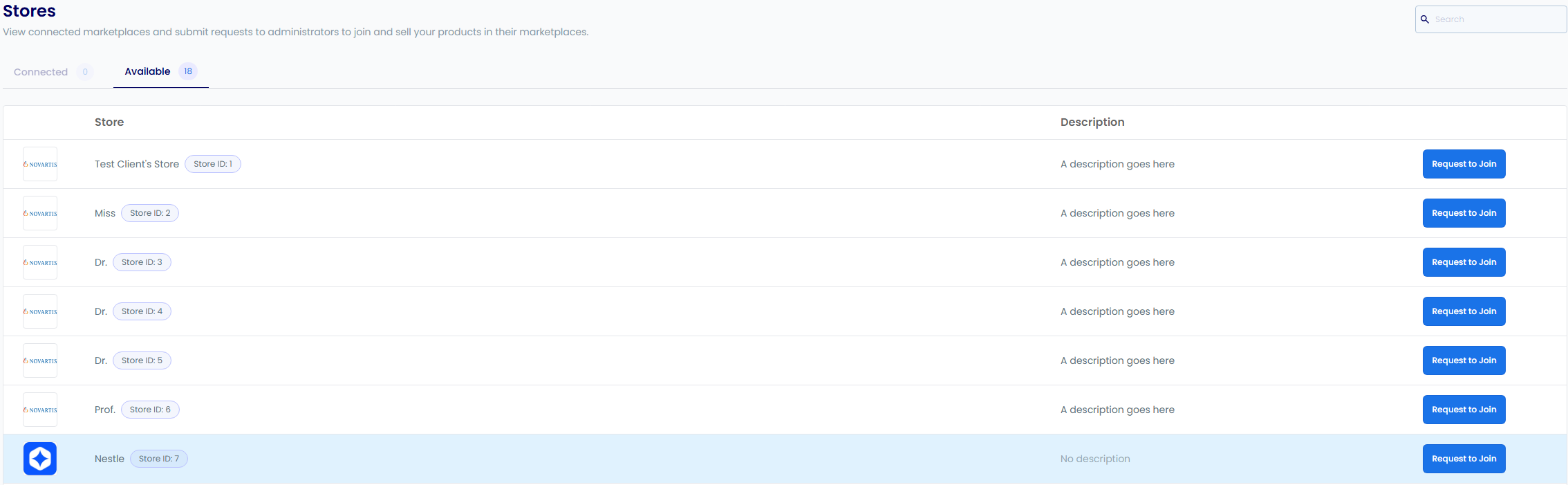
- Monitor the request status by selecting the Connected tab. When approved, the store appears in your Connected list.

Tip
Complete your business profile and prepare your product catalogue before requesting access. Store operators review your supplier profile when deciding on a request, and a complete profile speeds up approval.
Managing your connections
The Stores page has three tabs:
- Connected — every active store relationship, with the store's details.
- Pending — outstanding connection requests and their approval status.
- Available — stores that are open to new supplier applications.
Once you are approved, open a connected store to reach its Store Settings and configure store-specific parameters.
After a connection is approved
An approved connection unlocks the store for the rest of your account:
- Offer products and services — upload your offerings into the store. See Uploading Offerings.
- Set store-specific pricing — create price lists scoped to that store. See Managing Product Price Lists.
- Restrict products per store — enable or disable individual products for that store.
- View store analytics — order data and performance metrics are broken down per connected store. See Supplier Analytics.
- Configure notifications — set up alerts for store-specific events. See Email Notifications.
Approval rules set by the store
Each store decides how much of what you submit needs its approval before buyers can see it. Depending on the store's configuration, your products, prices and promotions may sit in an approval queue on the store's side before they become visible. Approval requirements can vary by category, by country and by supplier.
On your side, you control which of your own team members can act on those approvals with Approval Permissions.
When a connection is removed
If a connection is removed, by you or by the store operator:
- All of your pending approvals for that store are deleted automatically.
- Your products and services stop being available in that store.
- Historical order data for that store remains accessible.
- You can request to reconnect at any time from the Available tab.
Tips & good practice
- Review the store's requirements first. Each store can have its own catalogue standards and approval rules. Aligning your product data with them before you apply avoids a round of rejections once you are connected.
- Keep your supplier profile complete. Company name, description, logo and UNSPSC segments are what store operators see when they review your request.
- Check the Pending tab regularly. Approvals are not always instant. A request that has sat in Pending for a long time is usually worth a message to the store's procurement contact.
- Connect only where you can serve. Every approved store expects live prices and stock. Connecting to a store you cannot fulfil creates offers you then have to withdraw.
Troubleshooting
I can't see the store I want in the Available tab. Only stores that are open to supplier applications appear there. If a store has not opened itself to new suppliers, the store operator has to invite you directly. Ask your contact at that organisation to send an invitation.
My request has been pending for a while. Approval is done by the store's operators, not by Axiom. Contact the store directly to check on the request. You can keep working on your catalogue and prices in the meantime.
My request was rejected. A rejected request returns the store to the Available tab, so you can apply again once you have addressed whatever the store asked for. If no reason was given, contact the store operator.
I was connected but the store has disappeared from Connected. The store operator has removed the connection. Your pending approvals for that store were cleared at the same time. Request access again from the Available tab if you want to reconnect.
I can't see Request to Join or the Stores page at all. Your role is missing the store permissions listed at the top of this page. Ask an admin on your team to grant them. See Supplier Roles & Permissions.
Need help?
Most connection questions are answered fastest by the store you are applying to, since they own the approval decision. If you need to reach Axiom support, include the store name and whether the request shows as Pending, Available or Connected.