Supplier Roles & Permissions
Roles decide what your team can see and do — assign a built-in role, or build your own from the permission groups below.
role-listView the list of roles.role-createCreate new roles.role-updateEdit roles and the permissions attached to them.role-deleteDelete roles.supplier-permission-listView the full list of available permissions.team-listView the current team's members and details.role-permission-listView the roles and permissions assigned to a user.role-and-permission-attachAssign roles and permissions to a user.
Overview
Access to the supplier platform is controlled through roles. A role is a set of read and write permissions. You assign one or more roles to each team member, and the union of those roles decides what they can see and do.
Roles & Permissions give you the ability to:
- Use preconfigured roles — Admin, Content Manager and Account Manager cover most teams.
- Create custom roles — define roles that match your own team structure.
- Set granular read and write access — control access at the level of individual feature groups.
- Set a default role — new team members receive the default role automatically.
Two related controls live on other pages:
- Approval Permissions restrict which products a user can approve, per store, category or country.
- Price permissions restrict which price list scopes a user can work with, and are configured under Settings.
Preconfigured roles
The platform provides three standard roles:
| Role | Read | Write |
|---|---|---|
| Admin | All features & settings | All features & settings |
| Content Manager | All features & settings | All features & settings except for Stores, Team, Users, Roles & Business |
| Account Manager | All features & settings | No write permissions |
Assigning roles
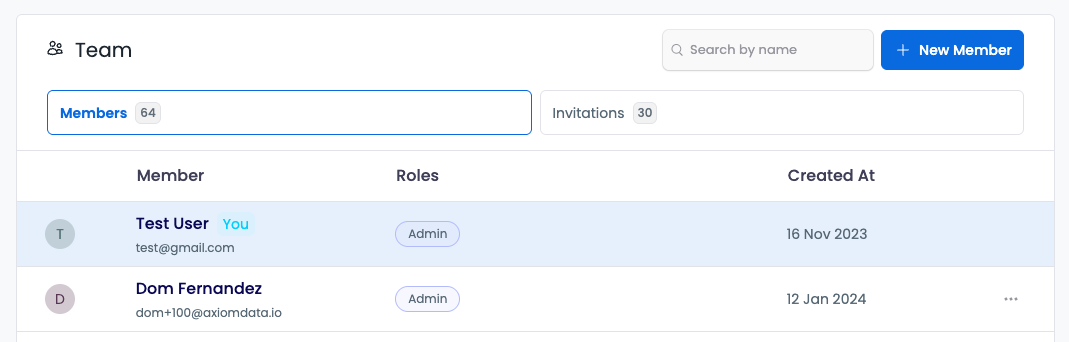
- Navigate to Settings, then select Team. Select the team member you want to update
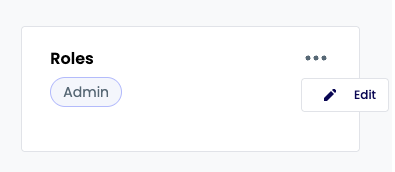
- Open the Roles section and select Edit
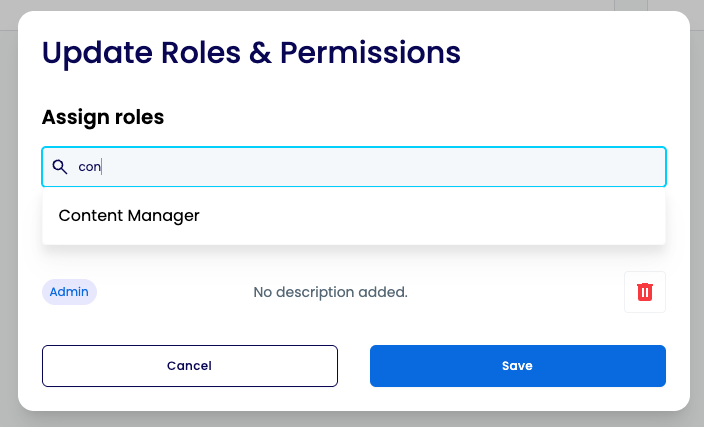
- Search for and select the appropriate roles
- Review your selections, remove any if needed, and save your changes
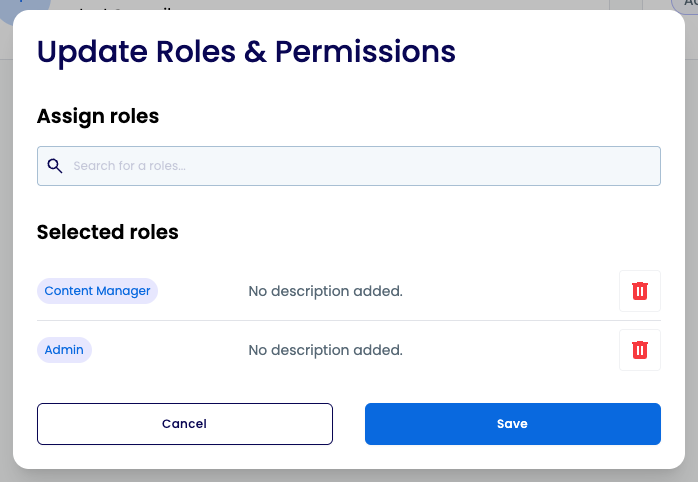
To invite a new team member and set their role at the same time, see Invite Team Members.
Creating a role
- Navigate to Settings and select Roles
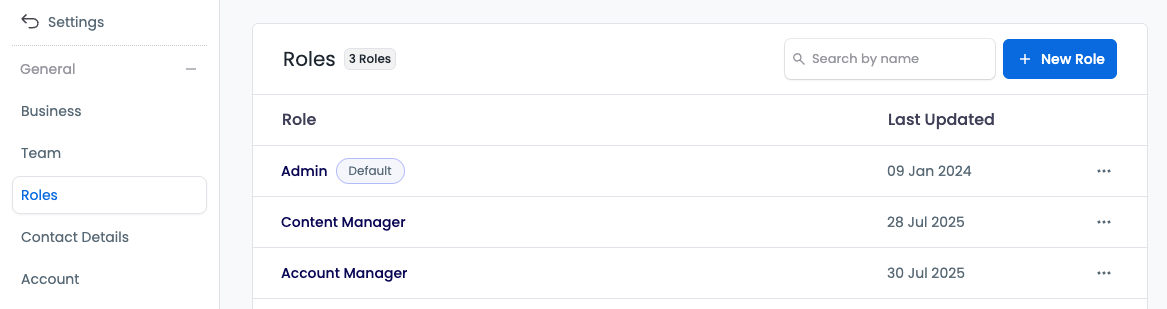
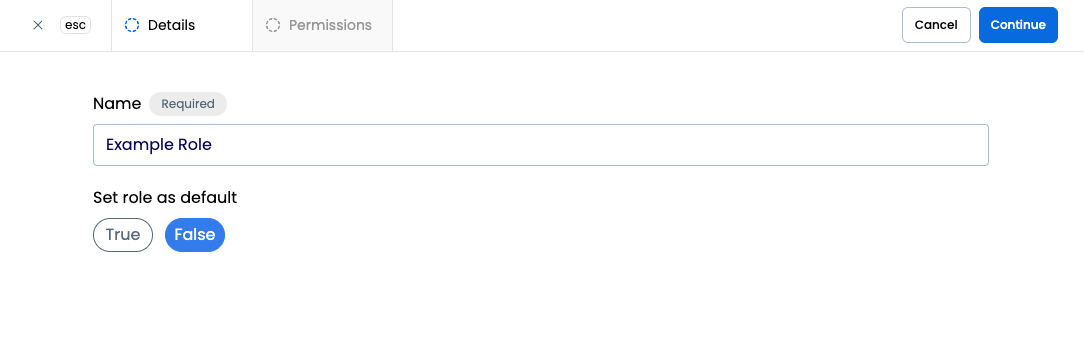
- Select + New role, enter a role name, and set the default status
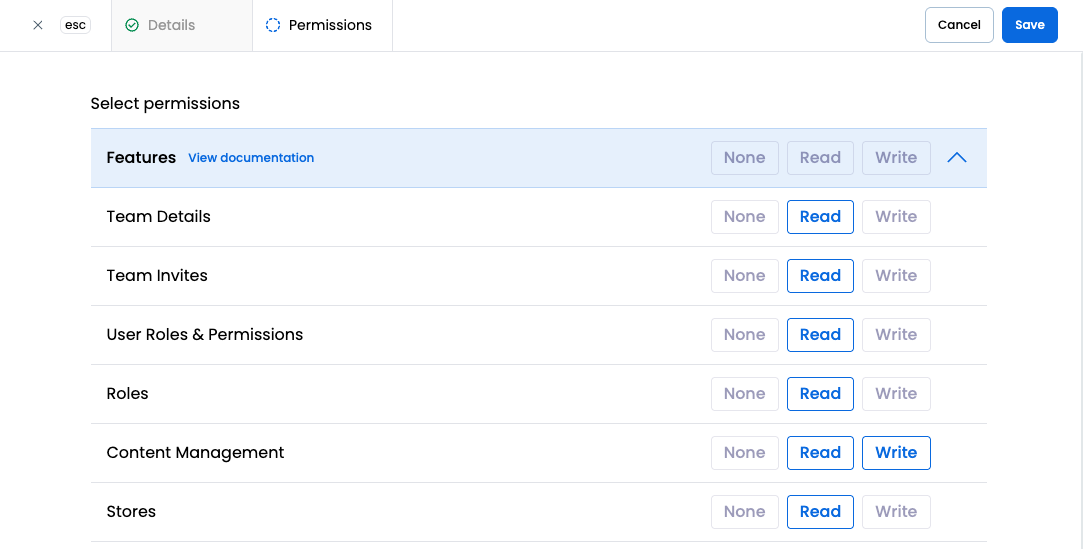
- Configure read and write access by selecting permission groups
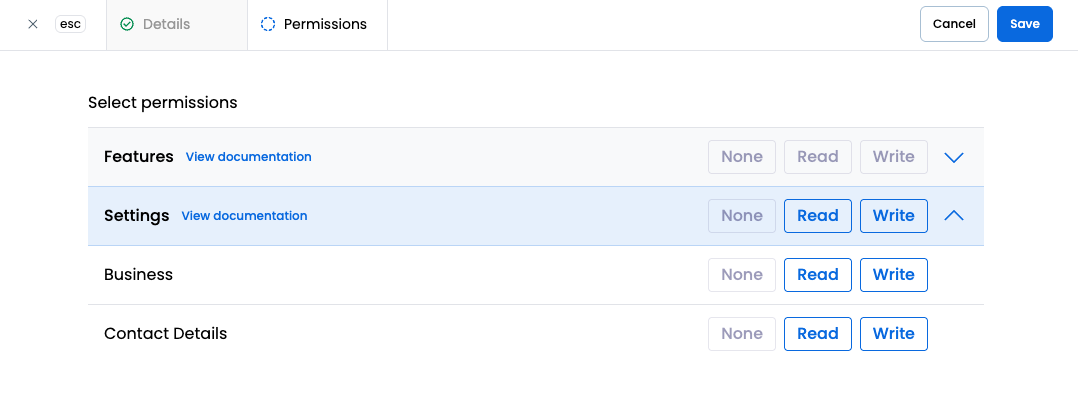
- Open individual groups to set bulk permissions or configure individual access as needed
Managing roles
You can edit existing roles, remove unused roles, or create new roles from the roles management page.
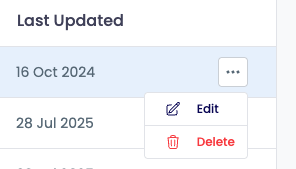
Changes to a role apply immediately to every team member who holds it.
Available permissions
The role editor groups permissions into Features and Settings. Within each group, enabling Read grants the viewing abilities listed and enabling Write grants the change abilities listed. Individual permissions can be ticked on their own if a group is too coarse.
Features
| Group | Read | Write |
|---|---|---|
| Team Details |
|
|
| Team Invites |
|
|
| User Roles & Permissions |
|
|
| Roles |
|
|
| Content Management |
|
|
| Price Permissions |
|
|
| Stores |
|
|
| Search Analytics |
| |
| Exports |
|
|
| Account |
|
|
| Quotes |
|
|
| Quote Settings |
|
|
| Requisitions |
| |
| Attachments |
|
|
| Requisition Reporting |
| |
| Summary Analytics |
| |
| Live Availability |
|
|
Settings
| Group | Read | Write |
|---|---|---|
| Business |
|
|
| Contact Details |
|
|
| SFTP Accounts |
|
|
Every guide in this documentation lists the exact permission keys it needs in the toolbar at the top of the page, so you can check a role against a task before assigning it.
Tips & good practice
- Start from a preconfigured role. Account Manager is a safe read-only default for new members. Promote people to Content Manager once they need to change catalogue data, and keep Admin for the few who manage the team and stores.
- Give write access by group, not wholesale. A role with write on Content Management but not on Stores or Roles lets someone maintain your catalogue without being able to change who has access.
- Set a sensible default role. Every new invitee gets the default role before anyone reviews them, so it should be the least privileged role that still lets them start work.
- Review roles when responsibilities change. Roles are additive, so a member who has collected several roles over time may hold more access than intended.
Troubleshooting
A team member can't see a page or button they need. Open the guide for that task and compare the permission keys in its toolbar with the roles the member holds. Grant the missing group on one of their roles, or assign an additional role.
I changed a role but nothing happened for the user. Role changes apply on the user's next request. Ask them to refresh the page or sign out and back in.
I can't edit or delete a role. Your own role needs write access to the Roles group. Only an Admin, or a custom role with that access, can change roles.
A user can see products but can't approve any. Approving is governed separately by Approval Permissions. Check whether a rule excludes the store, category or country in question.
Need help?
If a permission does not behave as described here, contact support with the role name, the permission group involved and what the user was trying to do.