Stock, Lead Time & Shipping Information
How to manage your stock, lead time and shipping information in Axiom.
supplier-product-listView the list of products.supplier-product-detailView the details of a product.supplier-product-stock-listView product stock levels.product-updateEdit products.product-stock-csv-importImport product stock from a CSV file.supplier-batch-request-listView the list of import requests.supplier-batch-request-showView the details of an import request.
Overview
Stock is the quantity of a product or variant available for purchase. Set the stock level for each product or variant individually — stock values do not inherit from parent products or override other entries.
Lead time is the number of days between when a customer places an order and when the product ships.
Shipping information includes additional details such as dimensions, weight, and barcodes for each product or variant.
All three fields are optional. You can add or update them at any time from the product details page or through a CSV import.
Format Stock and Lead Time Data
Follow these formatting guidelines so that Axiom can process your data.
Stock
| Repeated field | No |
|---|---|
| Variant inherits | No |
Lead Time
| Repeated field | No |
|---|---|
| Variant inherits | No |
Guidelines
Follow these guidelines to submit high-quality data for your products.
Minimum Requirements
Meet these requirements to list your product.
- Deliver the product to all locations that you support.
- Provide up-to-date data. Availability and prices can change frequently.
Best Practices
Apply these best practices to optimise your product data.
- Set the
[stock]attribute to 0 when your product is temporarily unavailable in the target country and you are not accepting orders. - Set the always available attribute to false when you take your website down for maintenance or a holiday.
- Disable the product for a particular store instead of setting always available to false when you want to hide a product from that store.
- Remove discontinued products from your product data instead of using the always available attribute.
- Provide the lead time attribute for each country.
Stock Fields Reference
| Field | Description |
|---|---|
| Type | Enter either product or product_variant. |
| Identifier | The product or product_variant identifier. |
| Country Code | ISO 3166 Alpha-2 country code. Provide either Country Code or Location Identifier. |
| Stock | The available stock of the product in the specified country or location. |
| Always Available | Enter either True or False. |
| Lead Time Days | The number of days from order to delivery dispatch in the specified country. |
| Height | The shipping height of the product. |
| Height Unit Of Measure | The height unit of measure. Use cm or in. |
| Length | The shipping length of the product. |
| Length Unit Of Measure | The length unit of measure. Use cm or in. |
| Width | The shipping width of the product. |
| Width Unit Of Measure | The width unit of measure. Use cm or in. |
| Weight | The shipping weight of the product. |
| Weight Unit Of Measure | The weight unit of measure. Use lb or kg. |
| HS Code | The Harmonized System Code. |
| Location Identifier | The stock location identifier. Provide either Country Code or Location Identifier. |
Creating Stock, Lead Time, and Shipping Information
-
Select a stock item from the Products window
-
Select ... from the Stock widget in the Product lookup window, then select + Add New from the ellipsis menu
- Set the Stock Location Type to a country and region or to a pre-defined location, then select Continue
- Enter the Stock Details: the quantity of stock available in the selected country or location, the number of calendar days before the stock can be dispatched, and the image URL for the stock item. Optionally, enable the option to signify this particular stock will always be available for orders, and set the country of origin.
- Enter any additional information for the stock, such as the shipping dimensions and the shipping codes. The additional information steps are optional — you can save the new stock after entering the stock details.
- Select Save to finish creating the new stock item
Viewing Stock and Lead Time for a Product
Navigate to the Stock widget on a product page to view stock and lead time.
Uploading Stock and Lead Time Data Using CSV Files
Format your data in a comma-delimited CSV file before importing. Access sample templates during the import process.
To perform a bulk product update, include the existing Product Identifier in your CSV file and update the corresponding product values. You can reuse the same CSV template for both new imports and bulk updates.
To begin uploading a CSV file, navigate to the Products page or the File Imports page within the Products area. Select Import, then select Stock CSV file.
1Import Data
Download a template by selecting the Stock Template icon. This template includes the fields required by Axiom. Required fields also appear on the right side of the page along with other supported fields.
You can also use a file with your own field names and map them to Axiom fields later in the import process.
Once your CSV file is ready, drag and drop or select Browse to choose the file. Select Continue in the upper right corner to upload.
2Map Fields
Map each field from your CSV to the corresponding Axiom field. Match all required Axiom fields before proceeding.
The dropdowns automatically select Axiom fields based on your field names. Adjust any incorrect mappings as needed. If you use one of the templates, the fields map automatically.
3Preview Data
After you map all required fields, select Continue to proceed to the review step. A preview of your data appears in a table.
Review the data, then select Continue to begin importing products from your CSV file.
4Review Import Results
You receive a notification in the platform (under the activity section of the analytics page) and via email when your import completes. The notification includes the count of successfully imported products, the number of errors, and a link to the error file. Forward the error file to support@axiomdata.io if you need further assistance.
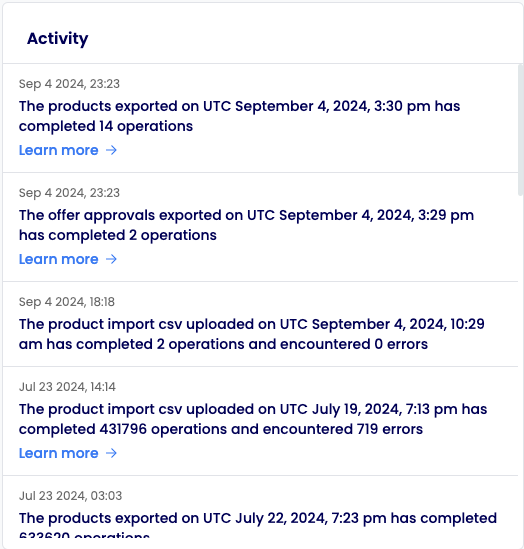
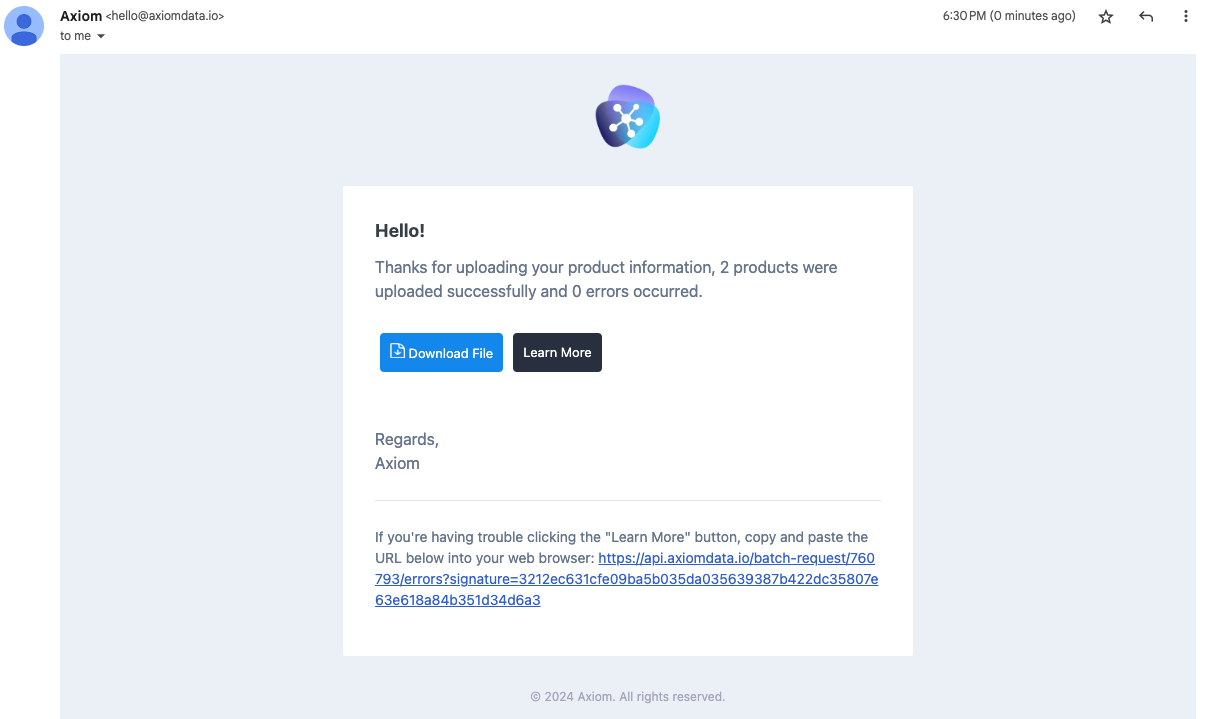
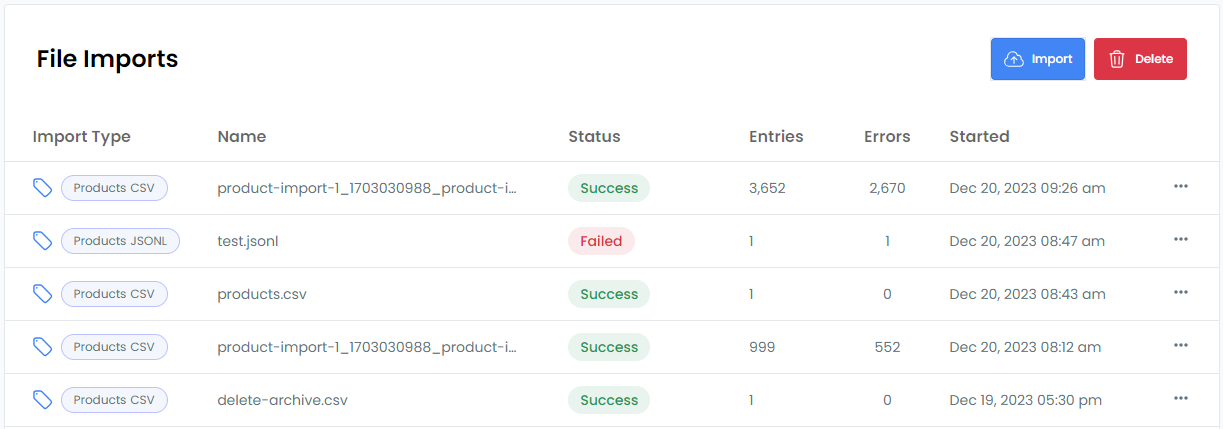
View all past and current imports on the Imports page. Select a table row to view more detail about an import.
- Overview
- Format Stock and Lead Time Data
- Stock
- Lead Time
- Guidelines
- Minimum Requirements
- Best Practices
- Stock Fields Reference
- Creating Stock, Lead Time, and Shipping Information
- Viewing Stock and Lead Time for a Product
- Uploading Stock and Lead Time Data Using CSV Files
- 1. Import Data
- 2. Map Fields
- 3. Preview Data
- 4. Review Import Results