Shipping Rules
Create and manage shipping rules for your products.
supplier-shipping-rule-listView the list of shipping rules.shipping-rule-createCreate shipping rules.shipping-rule-updateEdit shipping rules.shipping-rule-deleteDelete shipping rules.stock-location-listView the list of stock locations.
Watch how to create and configure shipping rules, including delivery options, areas, and conditions.
Open in new tabOverview
Shipping rules provide flexible delivery and pickup options for your products. With shipping rules, you can:
- Set different delivery options based on geographical regions
- Configure pickup locations for specific stores
- Create conditional shipping based on cart value or item quantity
- Manage delivery timings and handling times
- Apply rules to specific products or entire stores
Viewing Shipping Rules
Access the shipping rules page in either of two ways:
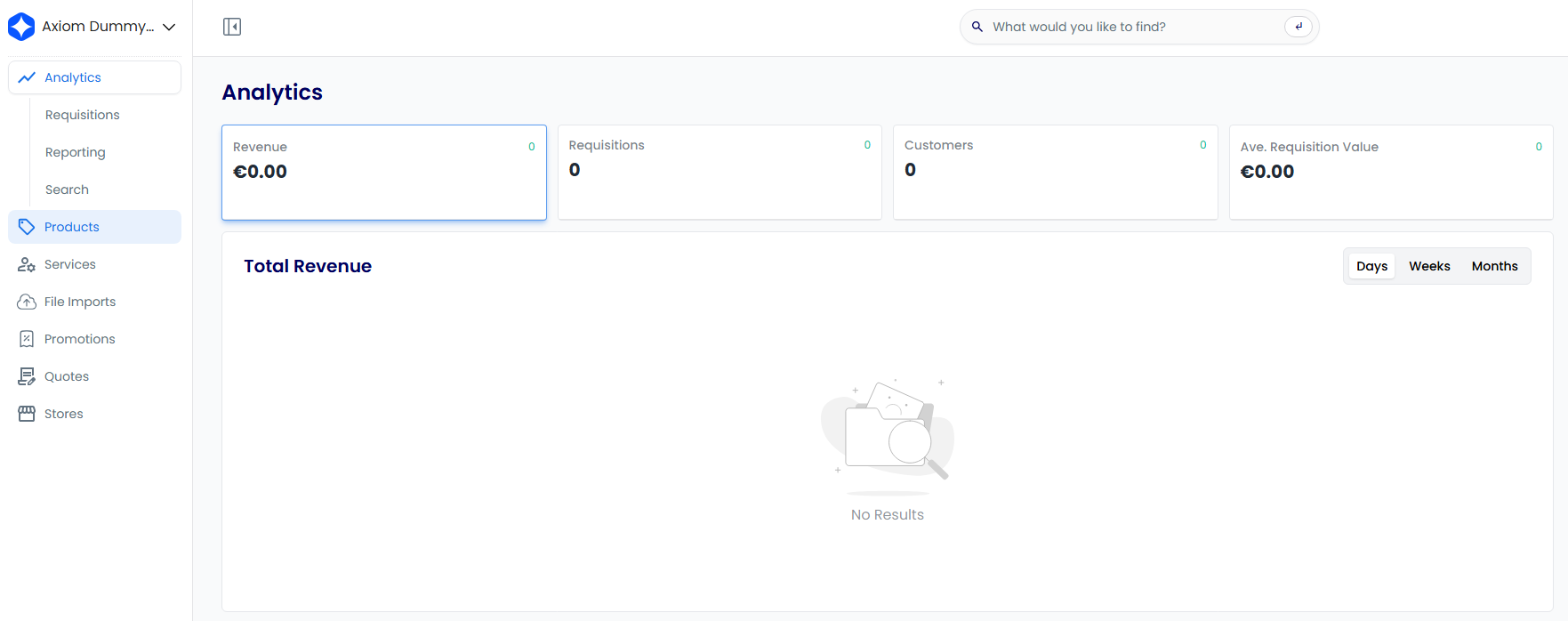
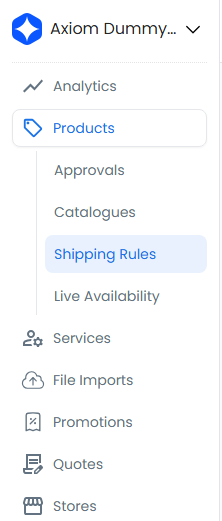
- Navigate to the Products heading and select the Shipping Rules subheading
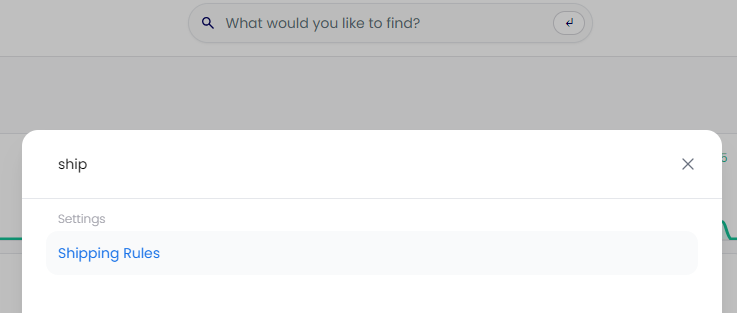
- Alternatively, search for "Shipping Rules" in the main search bar
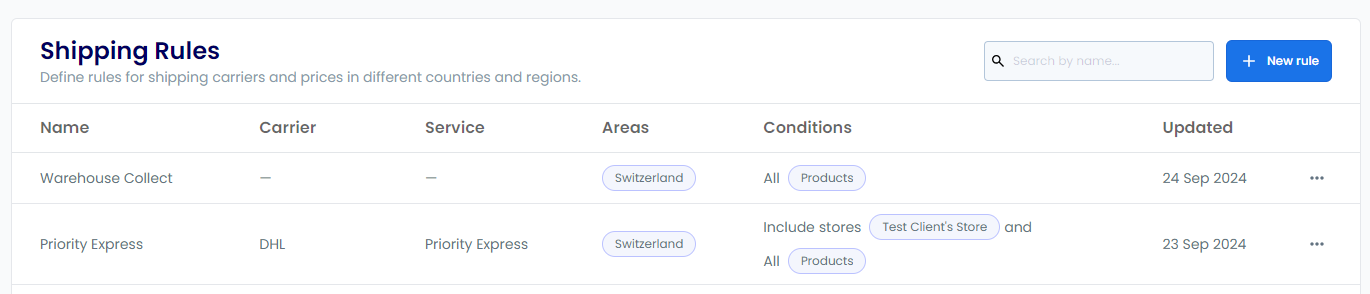
The shipping rules page displays a table of all your shipping rules. To find a specific rule, enter its name in the search field.

Creating a Shipping Rule
- Navigate to the Shipping Rules page, then select + New rule
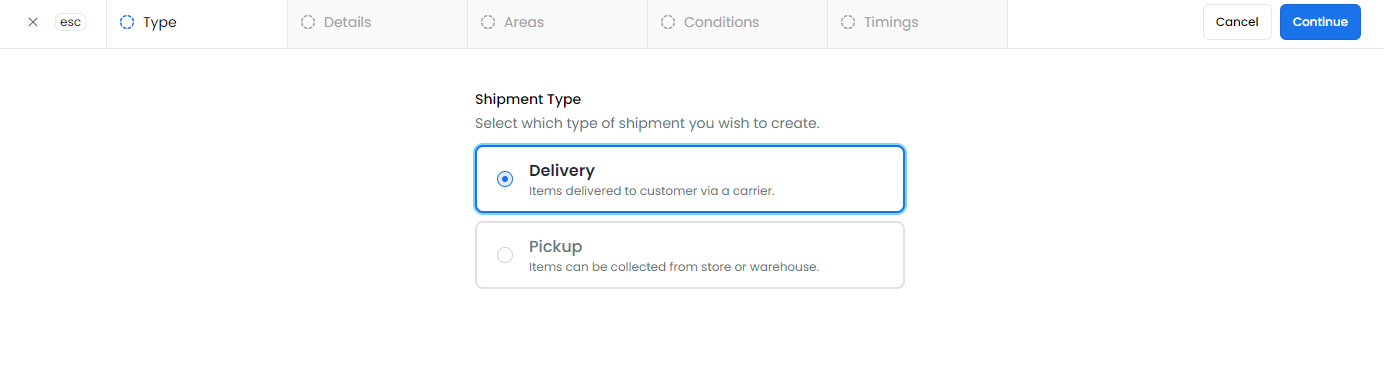
- Select the Shipment Type (delivery or pickup), then select Continue
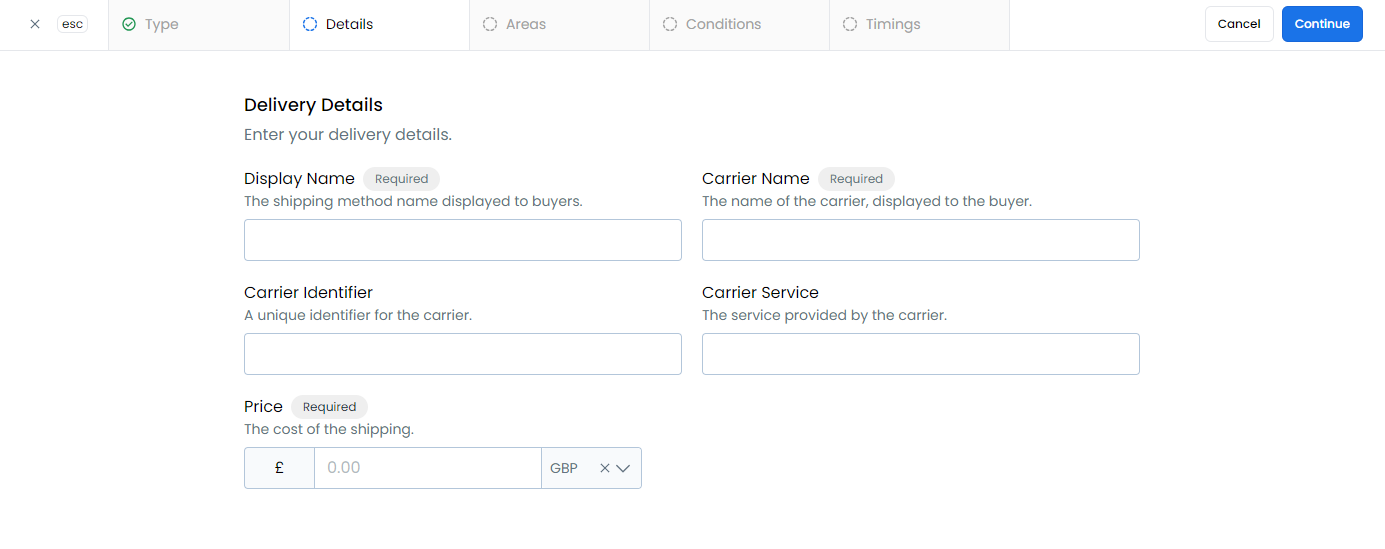
- Enter the details for your selected shipment type, then select Continue. See Shipping rule conditions for details on each field.
- Delivery: Enter the delivery details, including the shipping price
- Pickup: Enter the pickup details, including the stock location
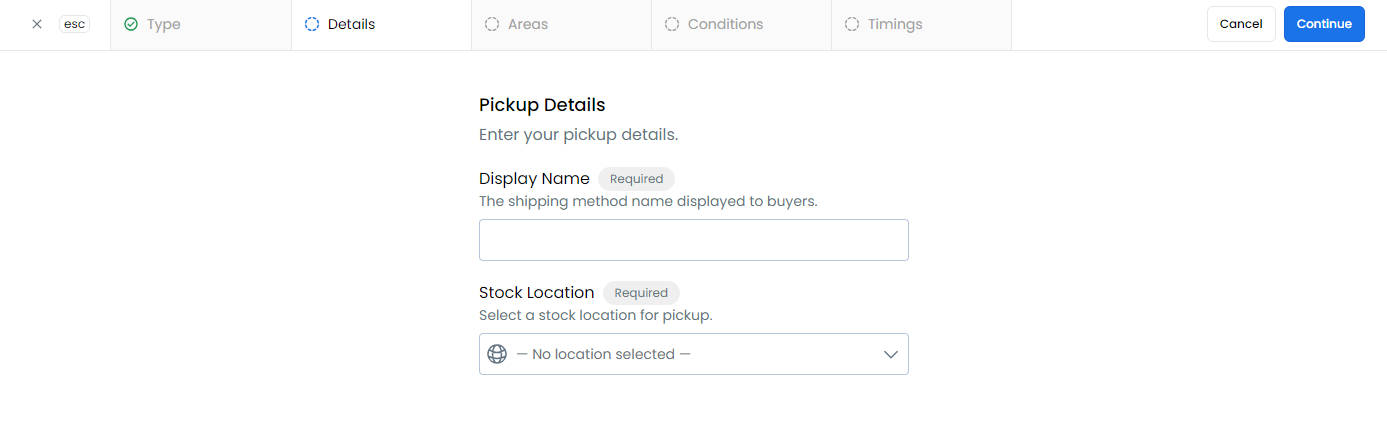
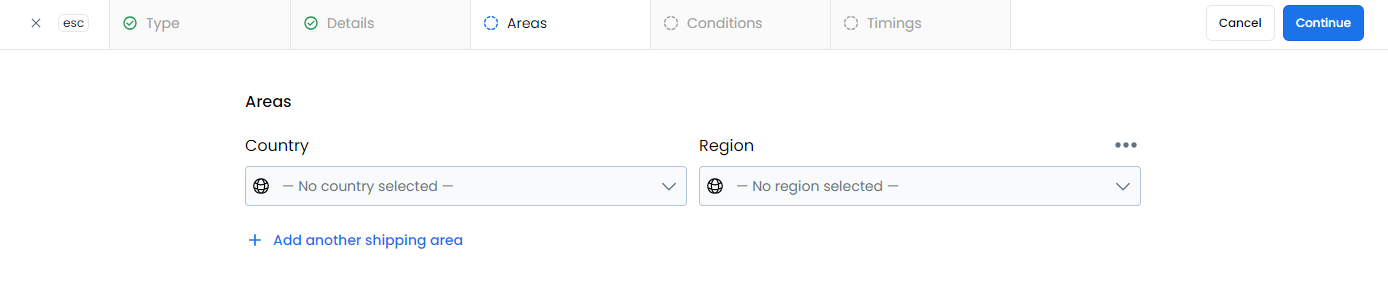
- Select which areas this shipping rule applies to, then select Continue. Each shipping area can be a country or a specific region within a country (for example, the U.S. state of California).
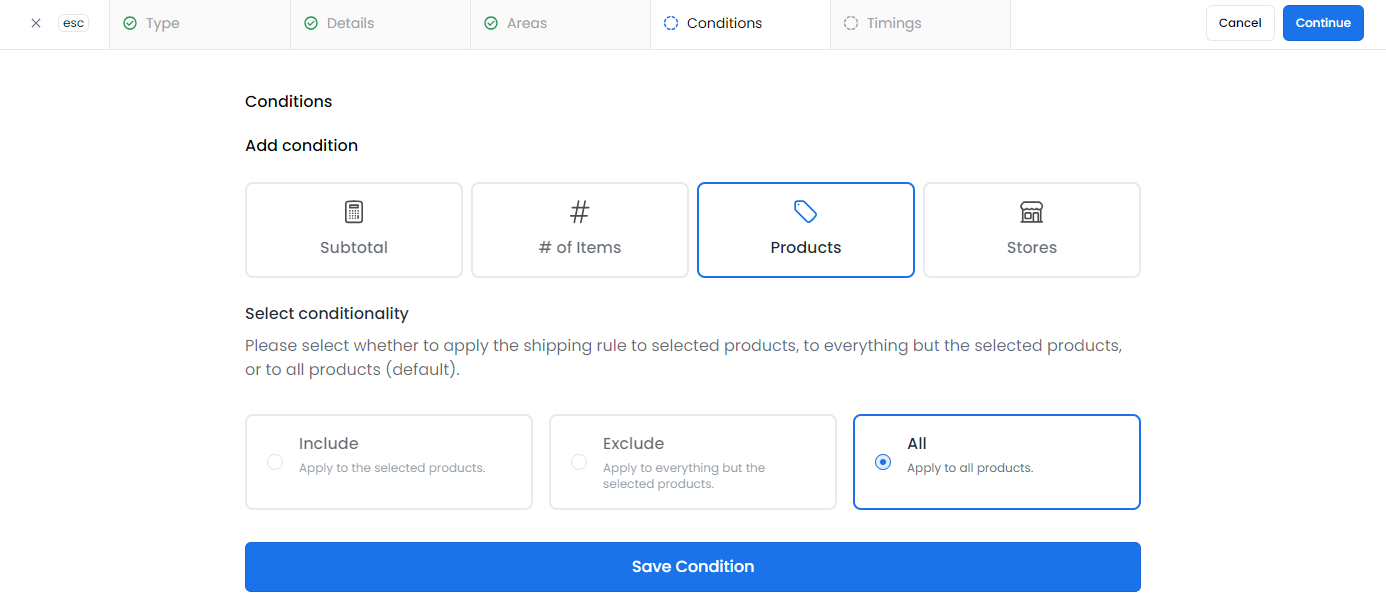
- Add one or more conditions to specify which products this rule covers (for example, all products or a particular store). Select Save Condition after each condition, then select Continue.
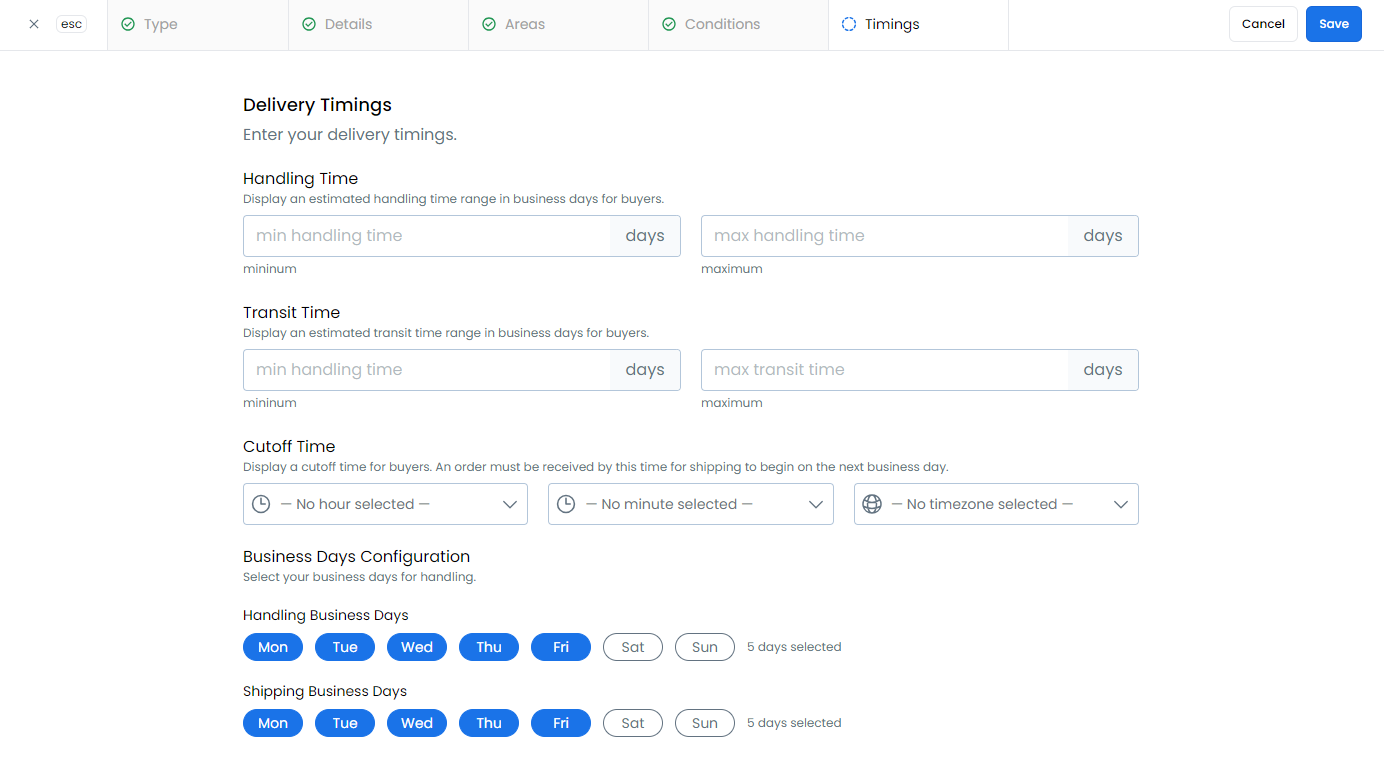
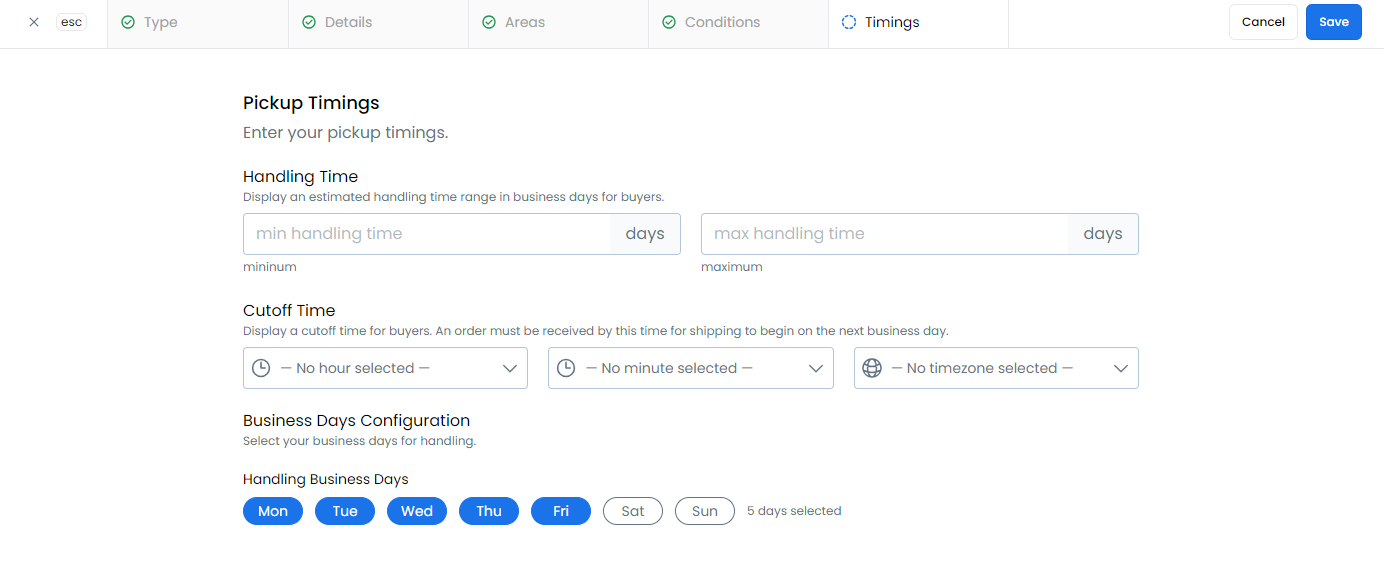
- Enter the delivery or pickup timings, including handling time, transit time (Delivery type only), a cutoff time, and business days configuration
- Review all entries, then select Save to create the shipping rule
Shipping Rule Conditions
Shipping rules can be configured with multiple conditions to determine their applicability. All conditions must be met for a rule to be available. The following conditions can be set:
Product Selection
- All Products: Rule applies to every product
- Include Specific: Rule applies only to selected products
- Exclude Specific: Rule applies to all products except those selected
Store Application
- All Stores: Rule applies across all stores
- Include Stores: Rule applies only to selected stores
- Exclude Stores: Rule applies to all stores except those selected
Cart Requirements
- Minimum Subtotal: Sets a minimum cart value requirement
- Includes the product being considered for purchase
- Helps create tiered shipping options (e.g., free shipping over $100)
Quantity Rules
- Minimum Items: Sets a minimum quantity requirement
- Counts individual items (e.g., quantity of 3 = 3 items)
- Includes the product being considered for purchase
Common Scenarios
Store-Specific Country Shipping
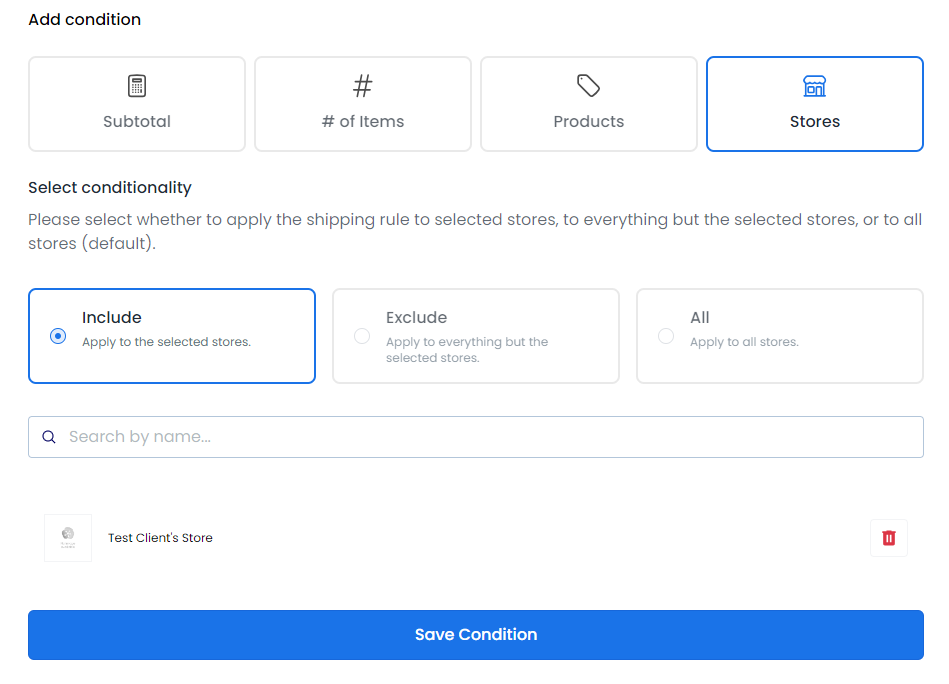
To create a shipping rule that applies to all products in a specific store for a particular country:
- In the Areas section, select your target country
- Under Conditions, add a Stores condition and select your store
- This automatically includes all products in the selected store

Country-Wide Shipping
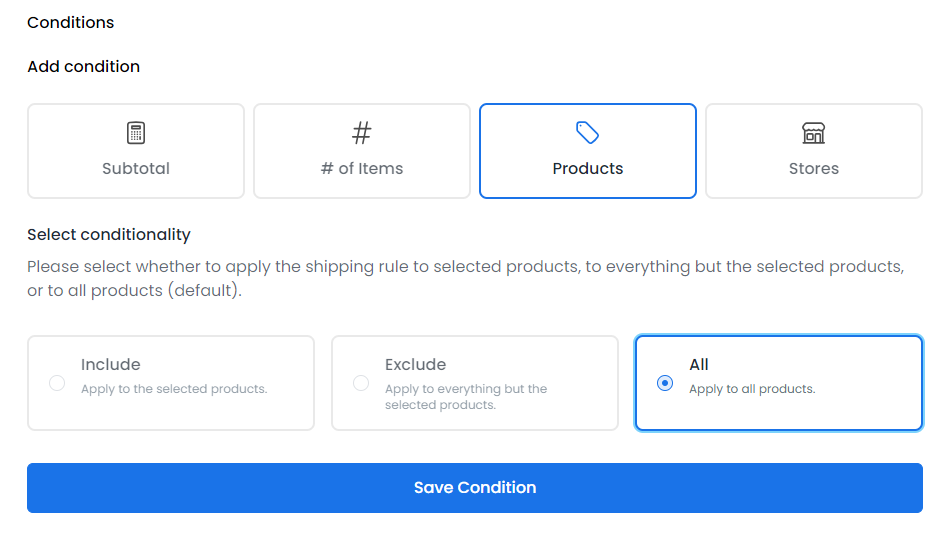
To create a shipping rule that applies to all products across all stores in a specific country:
- In the Areas section, select your target country
- Under Conditions, add a Products condition and select all products
- This creates a universal rule for the selected country
- Applies to all stores unless other conditions are added

Editing a Shipping Rule
You can modify an existing shipping rule in two ways:
- Select the rule directly in the shipping rules table
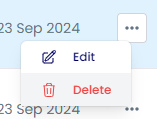
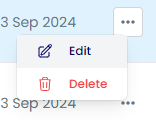
- Open the menu (⋮) and select Edit
Deleting a Shipping Rule
- Locate the rule in the shipping rules table
- Select the menu (⋮) and select Delete
- Confirm the deletion when prompted