Create Sales Promos
Step-by-step guide to creating, managing, and tracking sales promotions in the Axiom platform.
promotion-listView the list of promotions.promotion-createCreate promotions and discount programs.promotion-updateEdit promotions.promotion-deleteDelete promotions.
Watch this step-by-step video tutorial to learn how to create promotions. The tutorial walks through the complete process, including selecting promotion types, configuring conditions, and saving the promotion.
Open in new tabOverview
Use this guide to create, edit, delete, and track sales promotions for your connected stores. For details on discount types, conditions, pricing models, and API usage, see Create Discount Programs.
Creating a Promotion
Follow these steps to create a promotion for a store:
- Navigate to the Promotions page and select + New Promotion

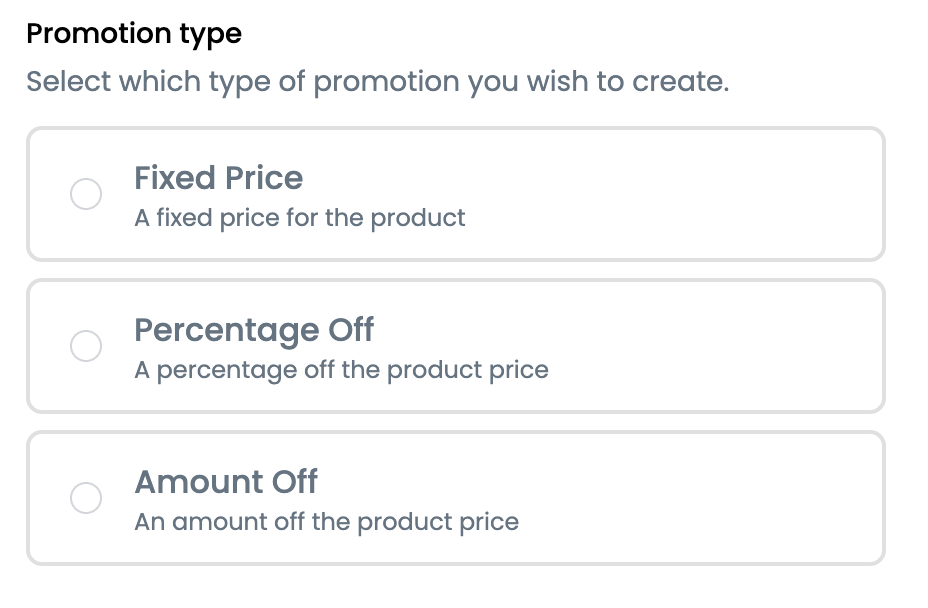
- Select a promotion type, then select Continue
- Enter a name for the promotion. Optionally, add a description, promotional message, promotion URL, start date, and end date.
- If you leave the start date blank, the promotion starts immediately
- If you leave the end date blank, the promotion runs indefinitely

- Select your client's store from the dropdown

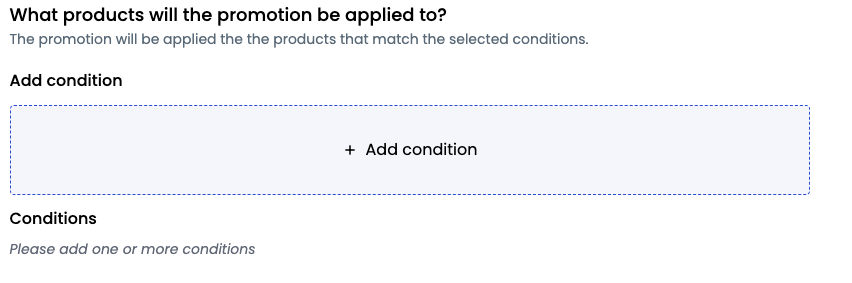
- Select + Add condition, choose a condition type, and configure the condition. Select Save Condition to confirm. Repeat to add more conditions.
- Select Save in the upper-right corner to create the promotion
Configuring Promotion Types
Select and configure the discount action for the promotion. For definitions of each type, see Understand promotion types.
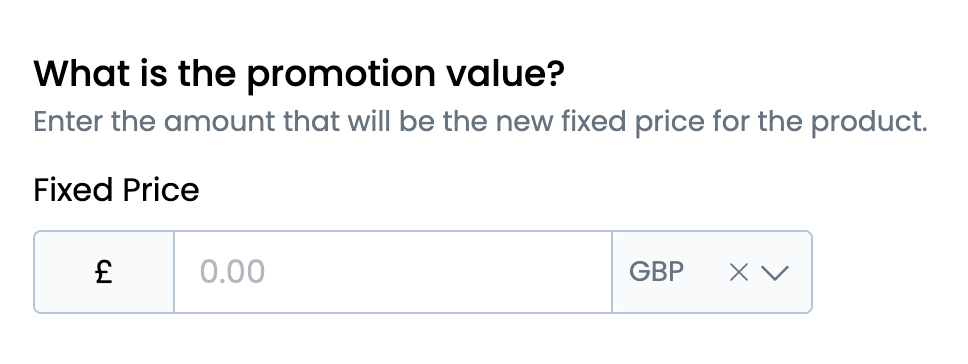
Fixed Price
Set a specific sale price for the product (for example, £50).
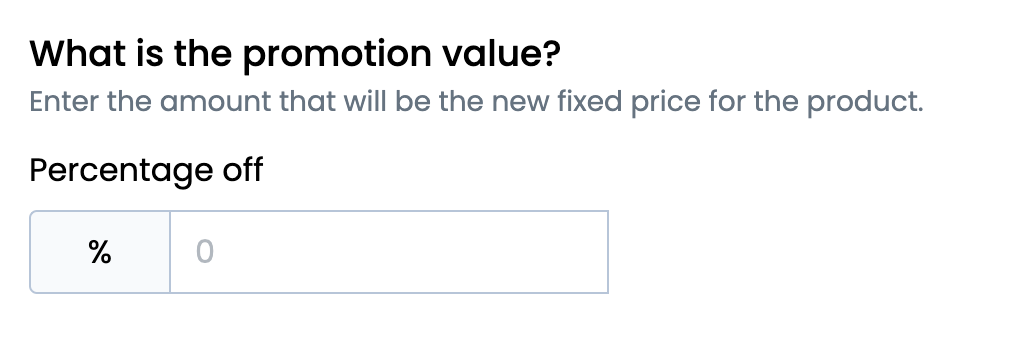
Percentage Off
Enter a percentage discount (for example, 20% off).
Amount Off
Enter a fixed amount to subtract from the price (for example, £5 off).
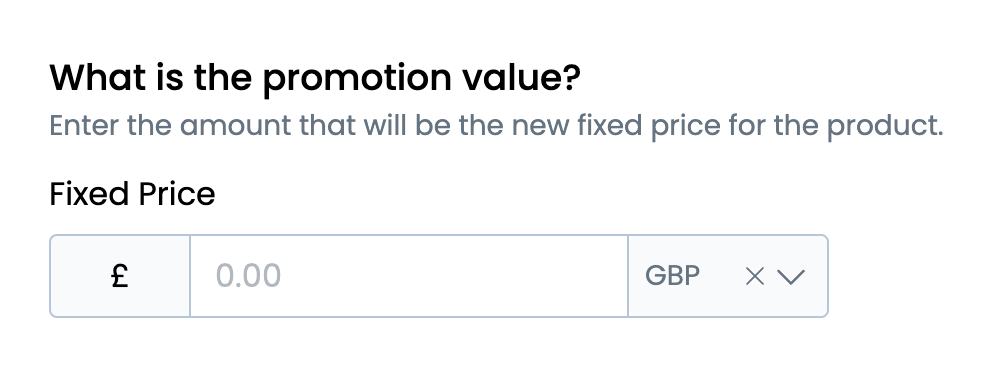
Configuring Promotion Conditions
Add one or more conditions to target specific products. Each condition can use the type include (only selected items) or all. For definitions of each condition type, see Configure promotion conditions.
- Select + Add Condition
- Choose the condition type
- Configure the condition details
- Select Save Condition
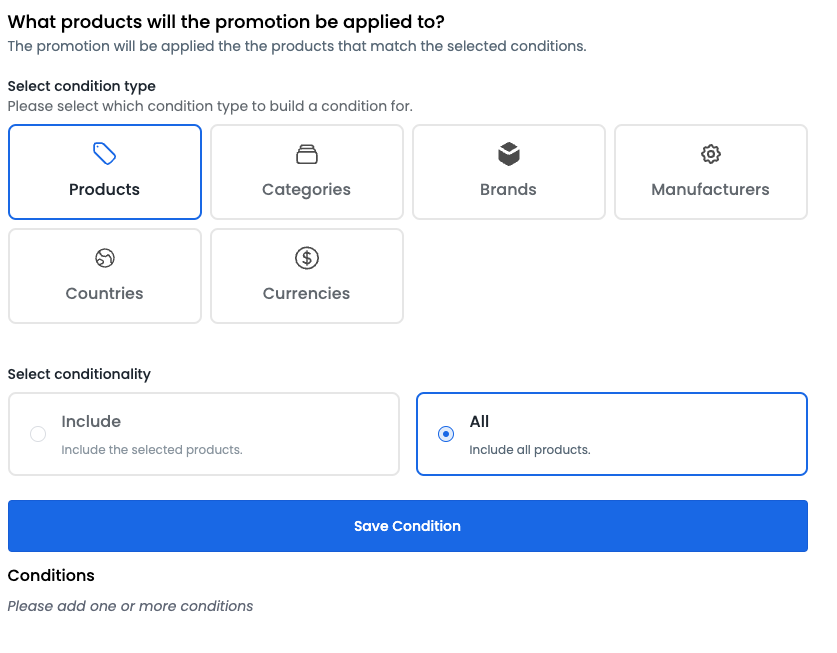
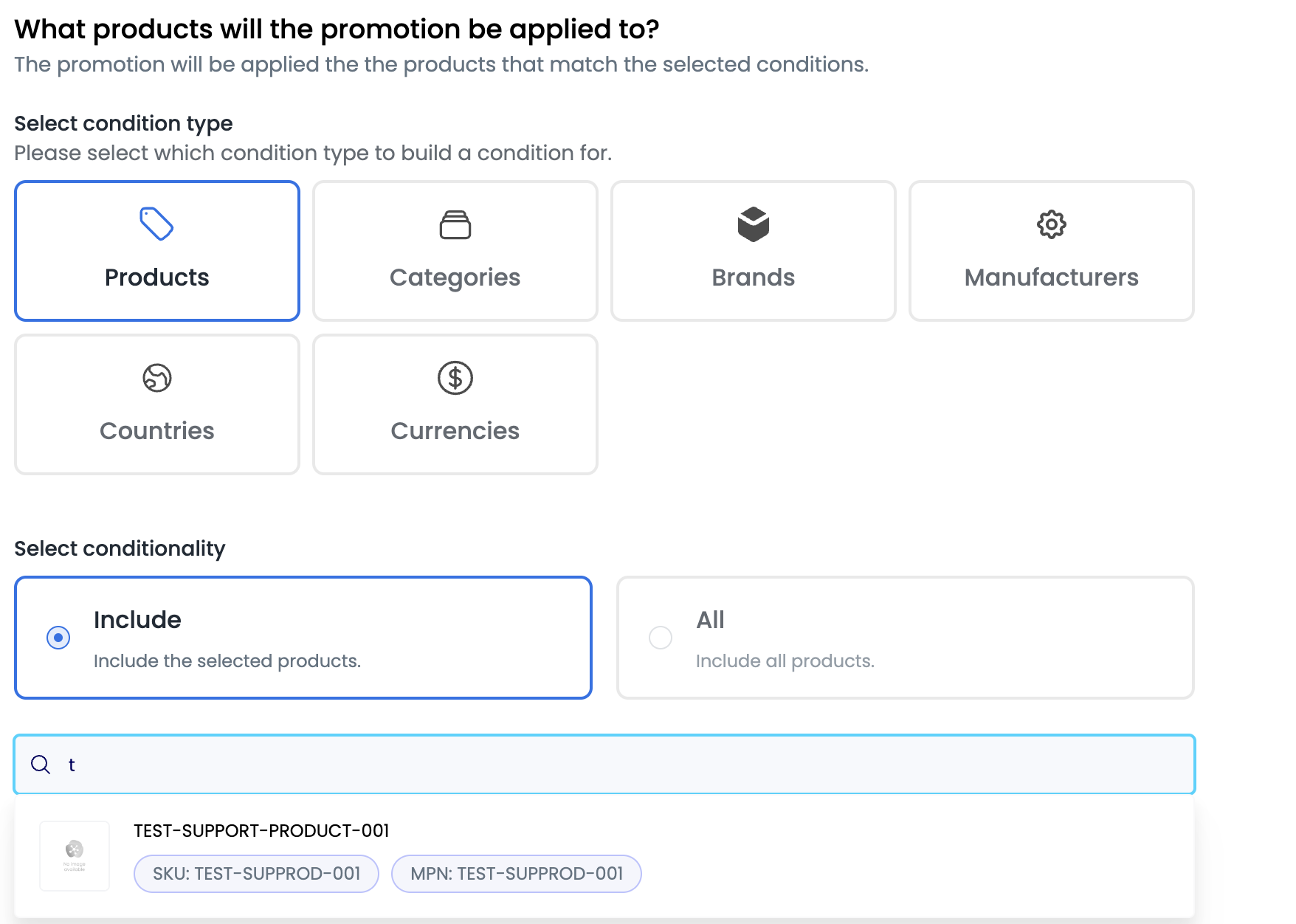
Products
Search for and select specific products to include in the condition.
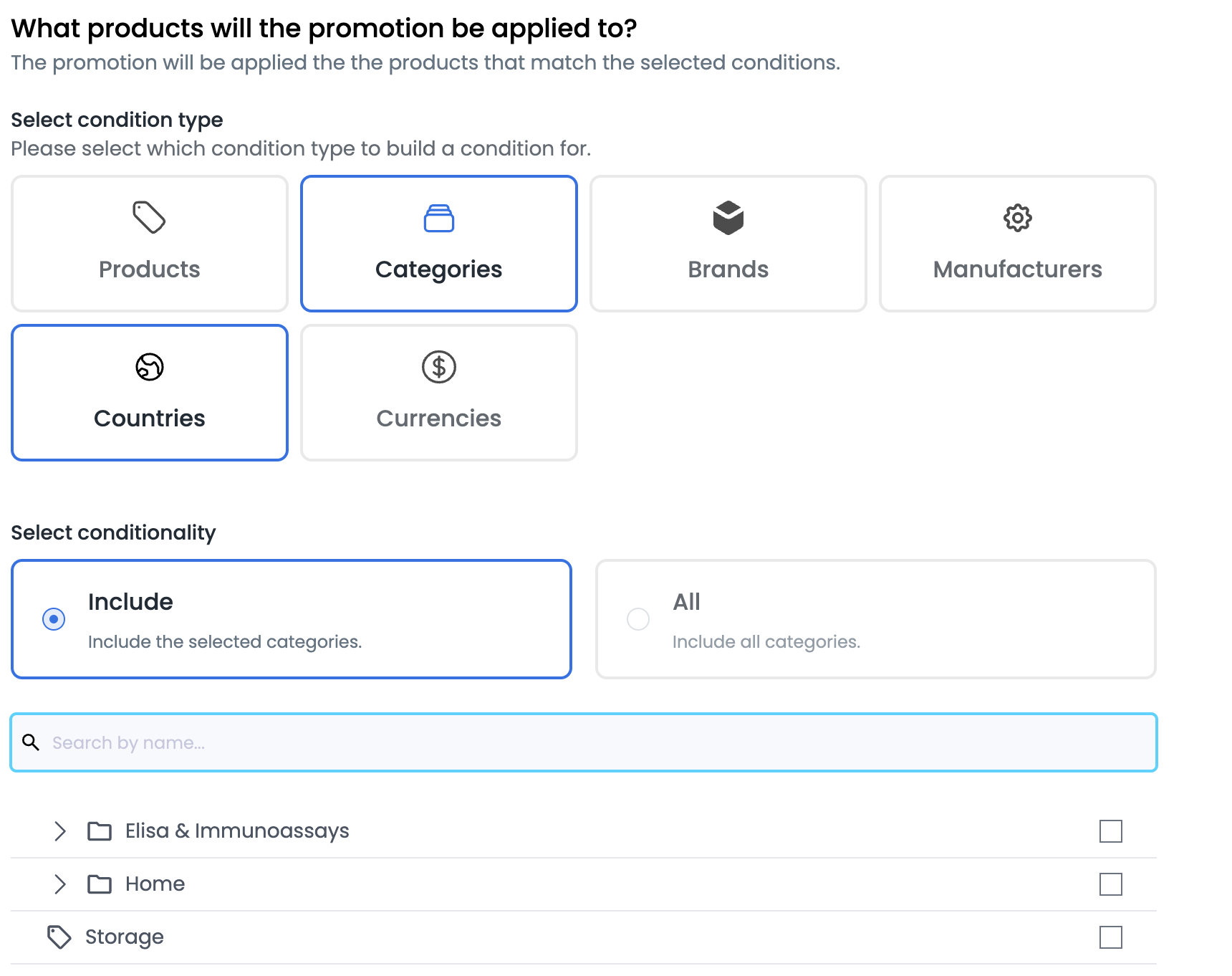
Categories
Select specific categories to include in the condition.
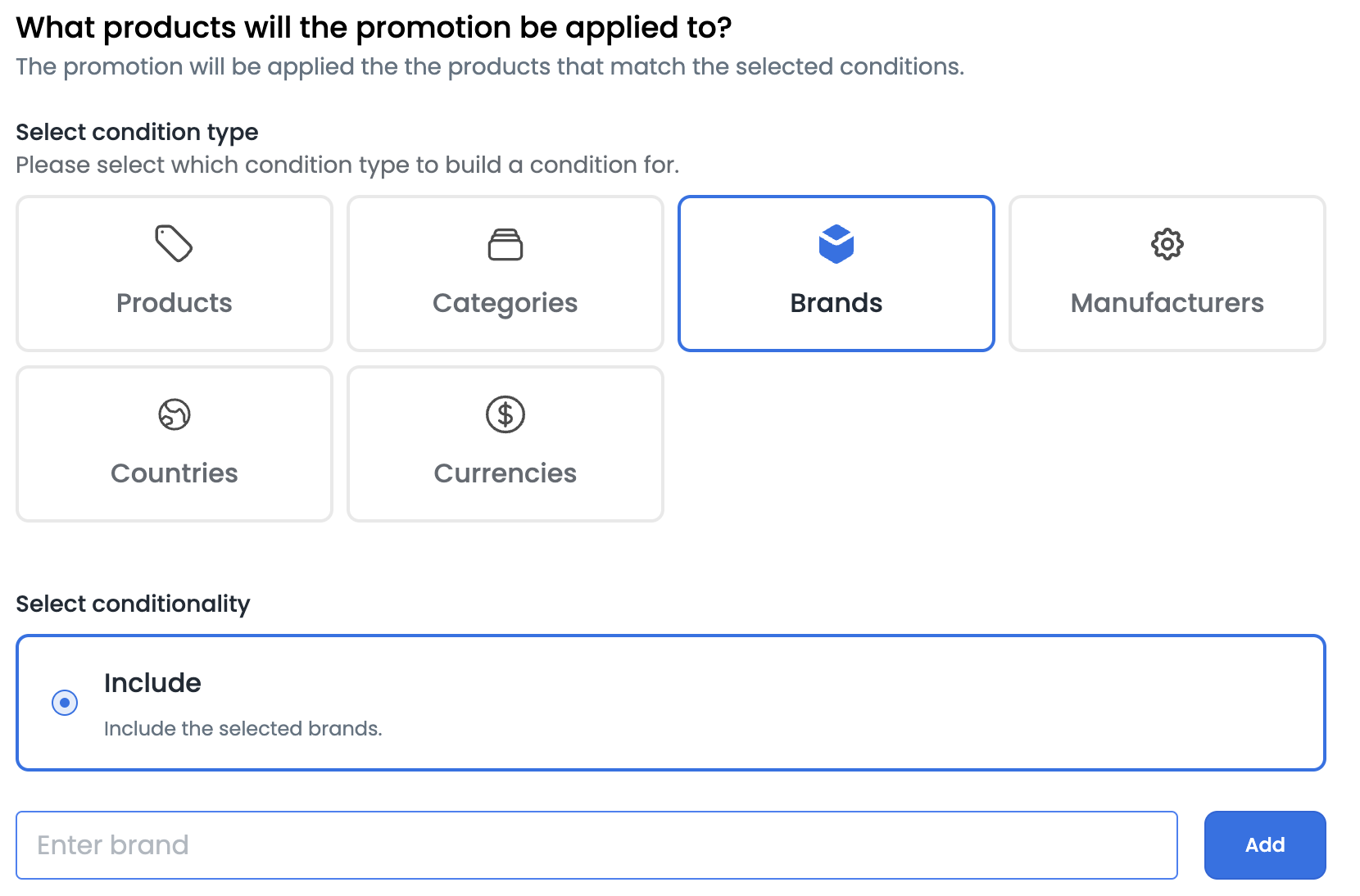
Brands
Enter and add specific brands to include in the condition.
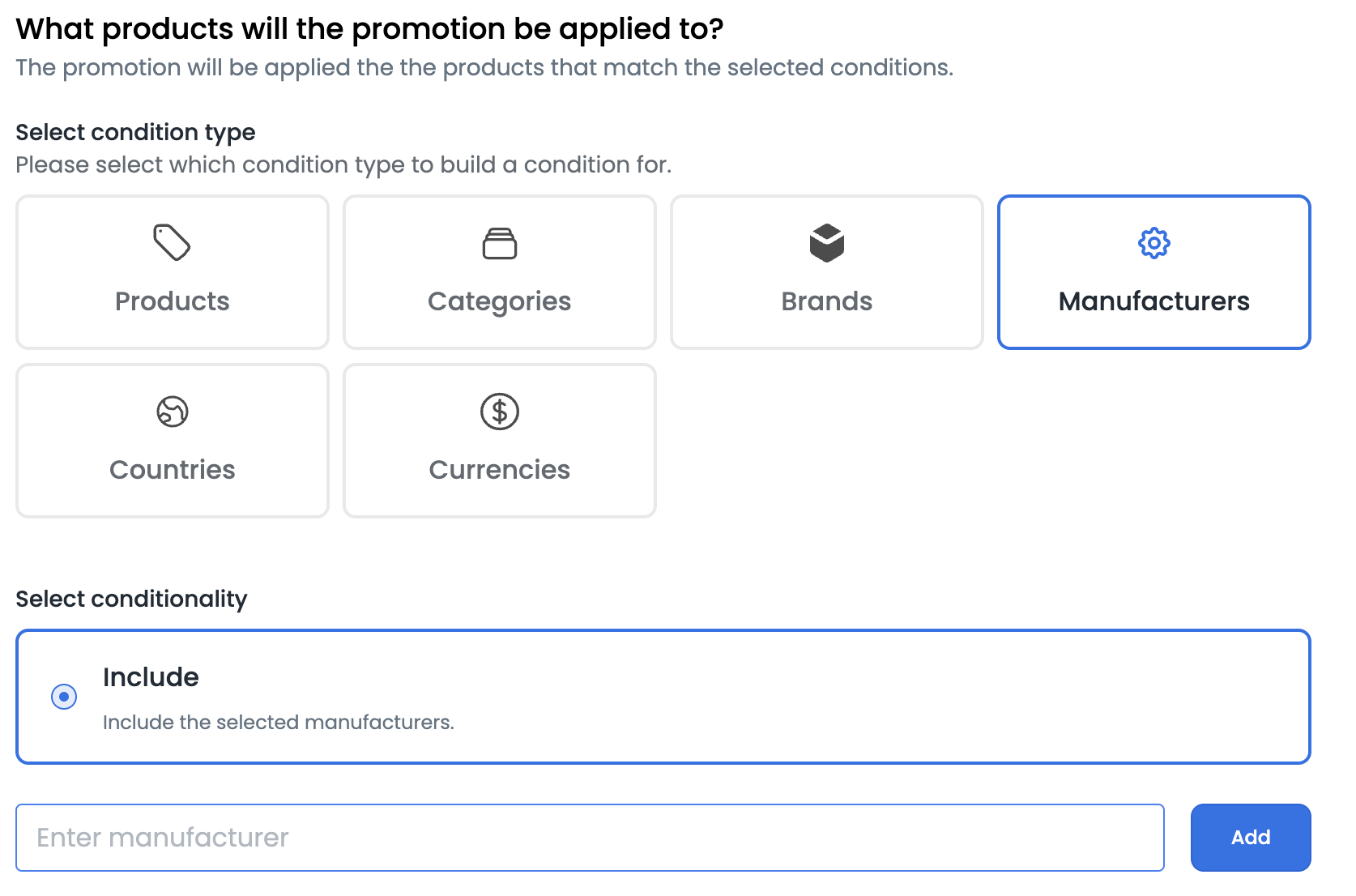
Manufacturers
Enter and add specific manufacturers to include in the condition.
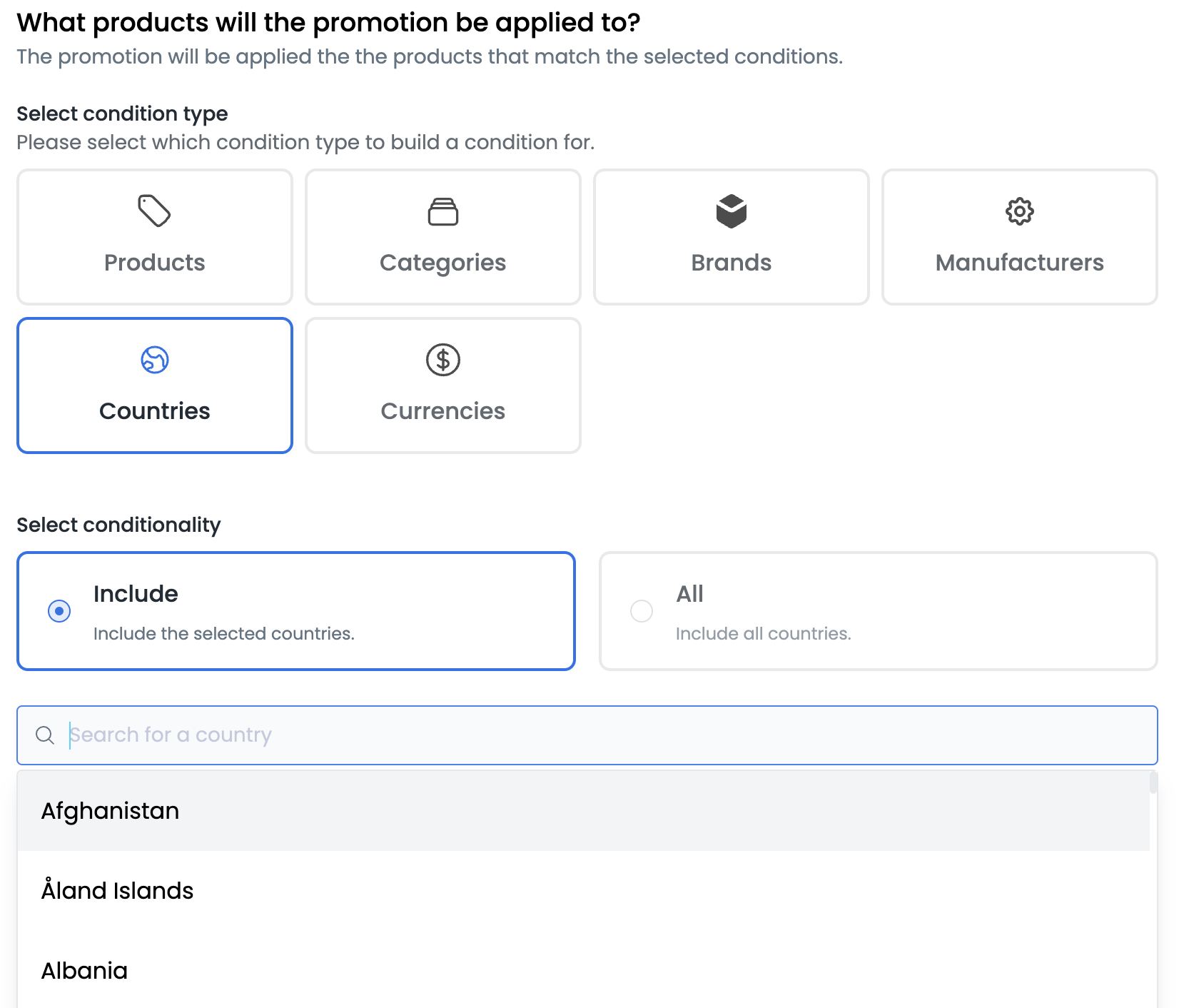
Countries
Select specific countries to include in the condition.
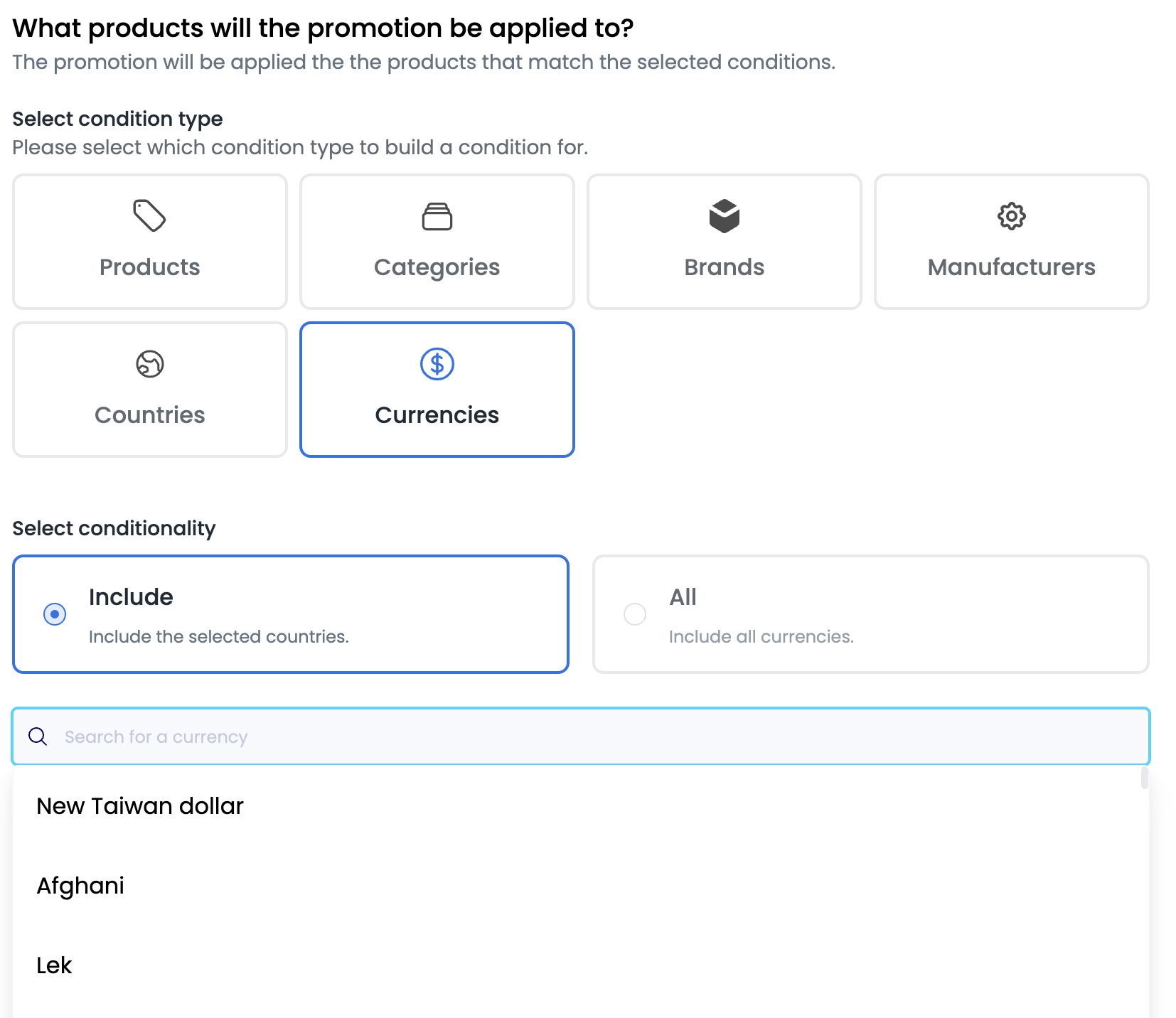
Currencies
Select specific currencies to include in the condition.
Checking Promotion Approval Status
- Navigate to the Promotions page
- Find the promotion in the table
- Review the status column: Pending, Approved, or Rejected
Editing a Promotion
- Navigate to the Promotions page
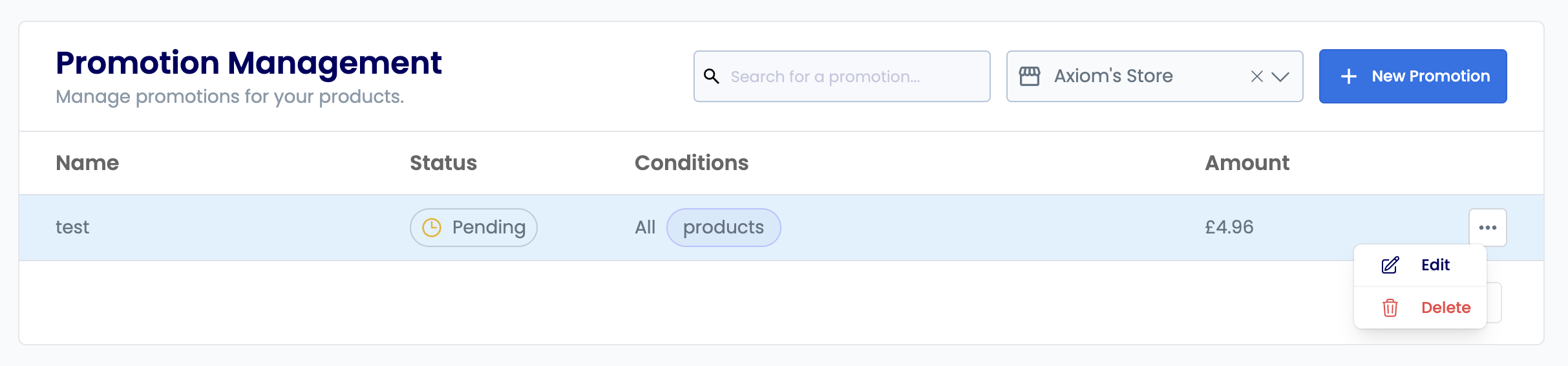
- Select the promotion row, or open the row menu and select Edit
- Make your changes and select Save
Deleting a Promotion
- Navigate to the Promotions page
- Open the row menu for the promotion
- Select Delete
Frequently Asked Questions
| Question | Answer |
|---|---|
| How do I change a promotion? | Open the promotion from the table, make your changes, and select Save. |
| How do I create a store-specific promotion? | All promotions are created for a single store. The store operator receives a notification and must approve it. |
| What happens if I don't set an end date? | The promotion runs indefinitely until you edit or delete it. |