Manage Services with Files
Bulk import, update, and delete services using CSV files.
services-csv-importImport services from a CSV file.supplier-batch-request-listView the list of import requests.supplier-batch-request-showView the details of an import request.supplier-batch-request-download-listDownload the results of an import request.supplier-batch-request-download-error-listDownload the errors from an import request.
Follow along to add a new service, including required fields and optional configurations.
Open in new tabOverview
Import, update, and delete services in bulk using CSV files. Most text editors and spreadsheet applications support this format.
Creating and Updating Services
1Upload a File
- Navigate to the Services page or the File Imports page
- Select Import, then select Services CSV file
- Download the template by selecting the Services icon. The template includes the fields required by Axiom. Required fields are also listed on the right side of the page along with other supported fields. You can also use a file with custom field names and map them to Axiom fields during the import process
- Drag and drop the file or select Click to Browse to choose your file
- Select Continue on the top-right of the page to upload
2Map Fields
In this step, you match your CSV fields to the corresponding Axiom fields. You must map all required Axiom fields before the import can proceed.
The dropdowns automatically select Axiom fields based on your field names. Adjust any incorrect mappings as needed. If you use the template, fields map automatically.
When you select a field dropdown, a data preview for that field appears on the right side.
3Preview Your Data
- After you map all required Axiom fields, select Continue to proceed to the review step. A preview of your data appears in a table
- Review the data, then select Continue to begin importing services from your CSV file
4Review Import Results
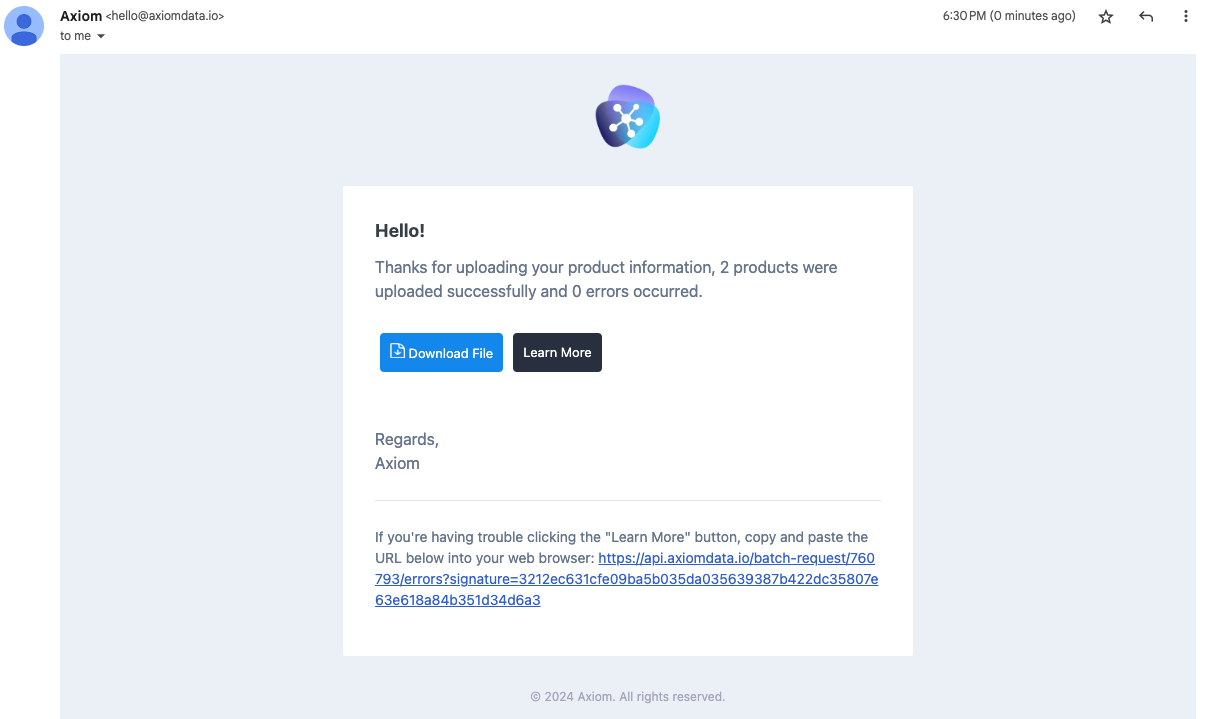
You receive a notification in the platform (under the activity section of the analytics page) and by email when your import completes. The notification includes the count of successfully imported services, the number of errors, and a link to the error file. For further assistance, forward the error file to support@axiomdata.io.
You can view all past and current imports on the Imports page. To view more detail about an import, select the table row.
On the import details page, you can view errors in the errors table, including file rows and error messages. To download the original CSV file, select Download File under ....
You can also download a copy of your original file with an added errors column to identify which rows need adjusting. Select Download Errors to get this file. To fix errors, import only the adjusted rows instead of doing a complete import.
Required CSV Fields
| Field | Description |
|---|---|
| Service Identifier | A unique identifier for the service. |
| Name | The service name. Use 1-150 characters. Supports Unicode characters (ASCII recommended). |
| Service Type | The billing type: fixed or variable. |
| Unit Size | The measure and dimension of your service. See the full list of supported units here. |
| Unit Label | The unit of measure that appears on the customer invoice. |
| SKU | A unique SKU for the service. Use your existing SKUs where possible. |
| UNSPSC | A United Nations Standard Products and Services Code (UNSPSC) to classify the service. |
Optional CSV Fields
The following table lists optional fields and their requirements.
| Field | Description |
|---|---|
| Description | A description of your service. A detailed description helps show your service to the right customers. |
| Image URL | The URL for a service image. This image appears to potential buyers. |
| Properties | The properties of the service you are selling. Properties and property values appear on the service page and are used to filter and search for services. Property names can be up to 155 characters, but buyers typically see only the first 30 characters. Property values have no length limit. |