Live Availability
Set up real-time stock availability checking for your products.
scrape-config-listView enrichment/live-availability scraping settings.scrape-config-createSave enrichment/live-availability scraping settings.scrape-config-toggleEnable or disable scraping configurations.supplier-inventory-scrape-urlTest live-availability checks against a product URL.product-csv-importImport products from a CSV file.supplier-product-detailView the details of a product.supplier-product-stock-listView product stock levels.product-updateEdit products.
Overview
Live Availability automates stock level tracking by checking your product pages in real-time. Buyers always see current stock information, which reduces manual updates and prevents orders for unavailable items.
Key Features
Live Availability gives you the ability to:
- Real-time stock updates — automatically check product pages for current availability
- Flexible scraping modes — choose between normal and advanced modes to suit your site
- CSV bulk import — add stock URLs for multiple products at once
- Per-product URL settings — configure individual stock URLs from the product panel
- Testing tools — verify scraping accuracy before activating
Setting Up Live Availability
1Access the Live Availability Settings
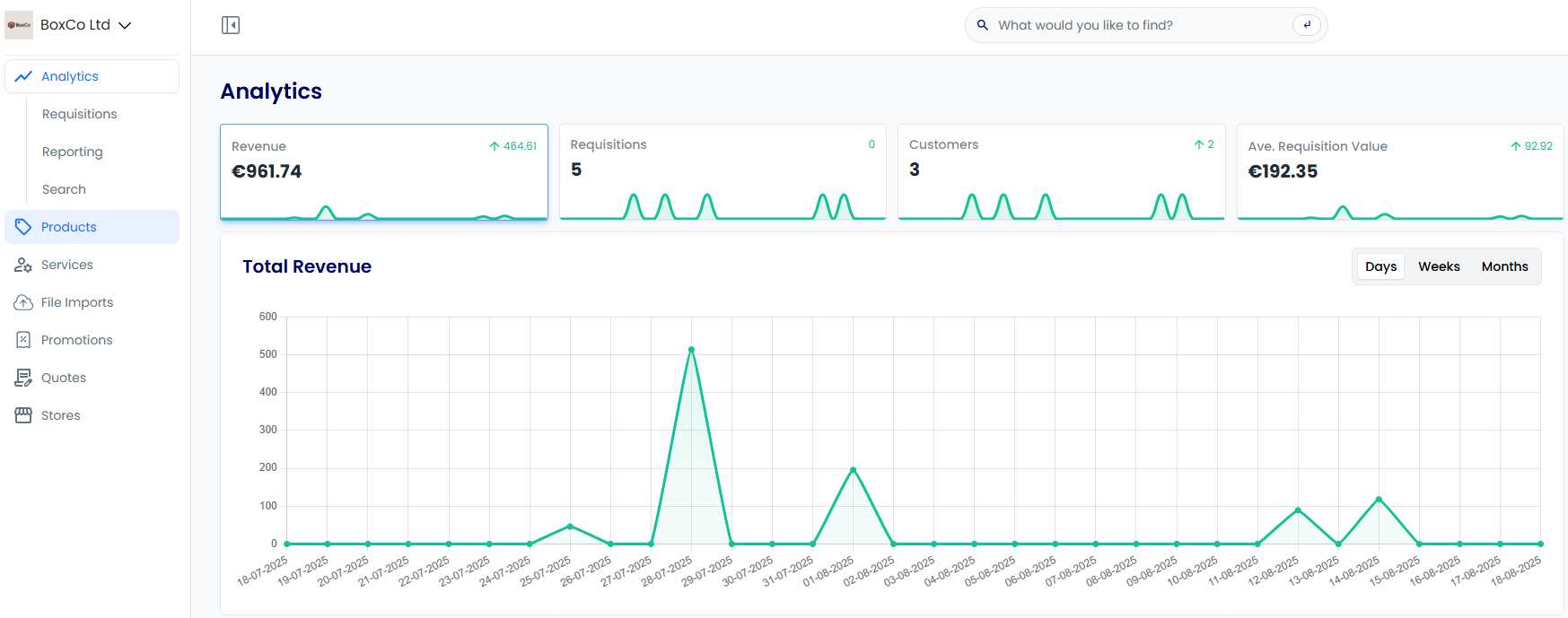
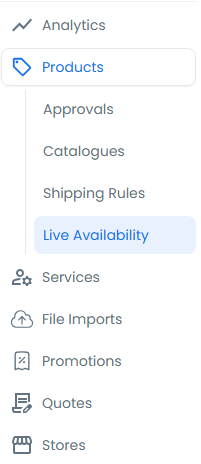
- Navigate to Products > Live Availability
- Select Live Availability from the menu
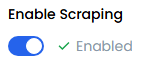
- Locate the scraping settings
2Select a Scraping Mode
Choose the scraping mode that fits your site:
- Normal Mode — Standard configuration with faster processing. Use this for most sites.
- Advanced Mode — Enhanced compatibility with additional processing options. Use this when Normal mode does not return accurate results.

3Configure Scraping Settings
Adjust scraping parameters, update frequencies, and timeout settings to match your needs.

4Test the Implementation
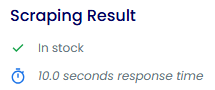
- Enter a test product URL
- Run the availability check
- Verify that the results are accurate

Note: If neither mode provides accurate results, continue managing stock levels manually.
Managing Stock URLs
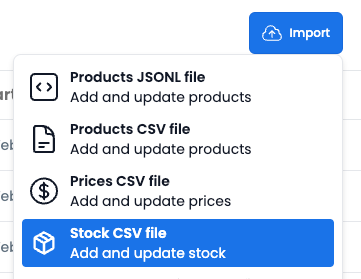
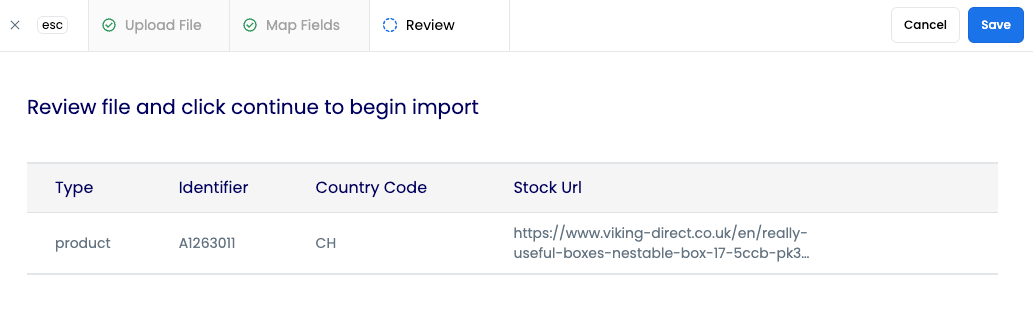
Import URLs with CSV
To add stock URLs in bulk, include each URL in the stock_url field of your CSV file.
Update URLs for Individual Products
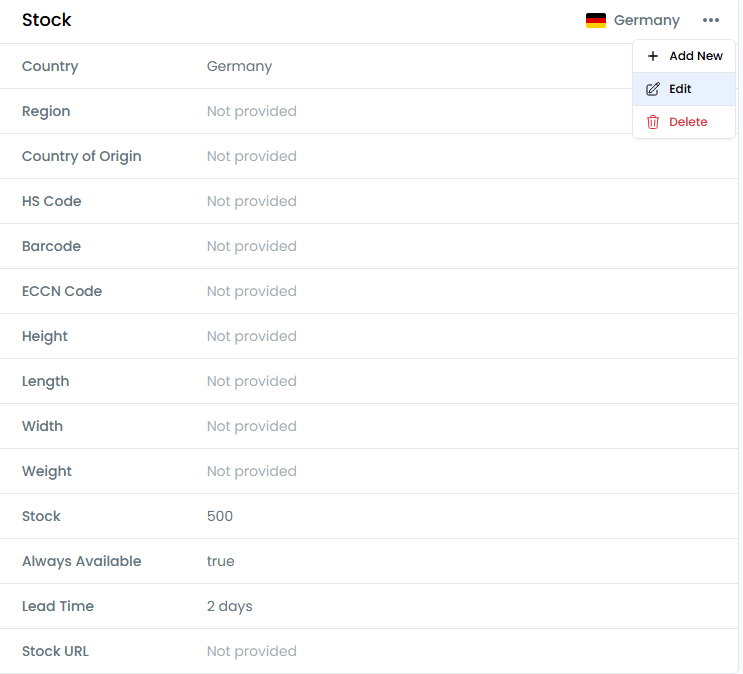
- Navigate to the Products section
- Select the product you want to update
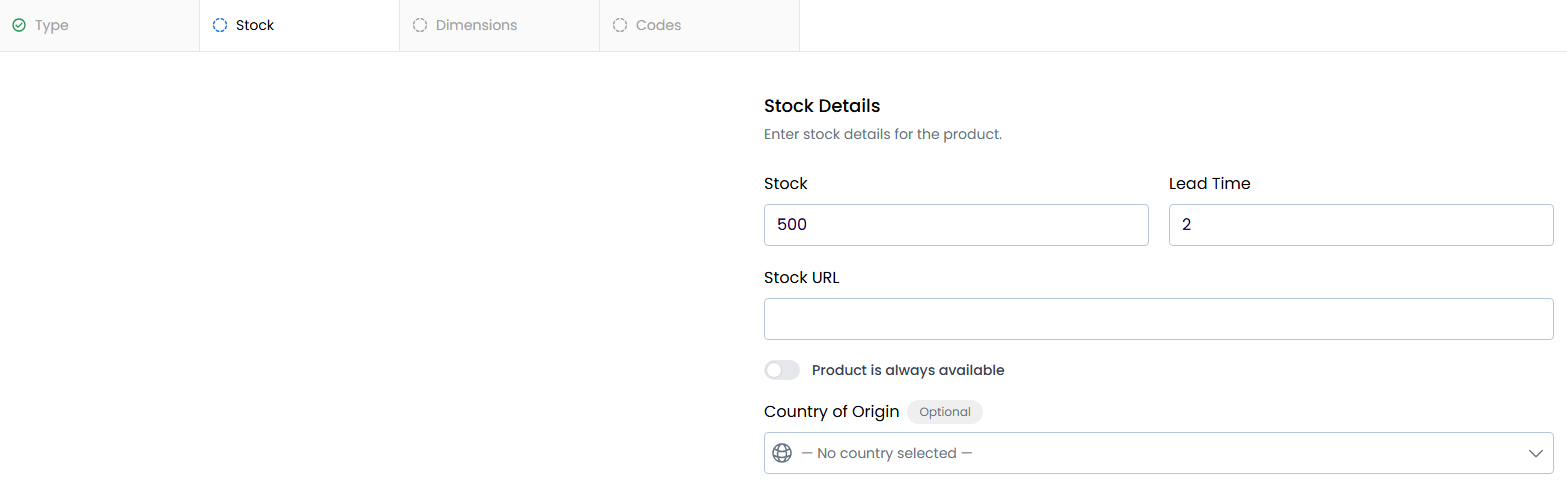
- Open the Stock panel
- Enter the new stock URL
Activating Live Availability
- Navigate back to Live Availability
- Turn on the scraping toggle
- Confirm your mode selection
- Select Save to apply the configuration