Exporting Files
Export your business data for reporting and analysis.
supplier-export-requestRequest a data export.supplier-export-request-listView the list of export requests.supplier-export-request-download-fileDownload completed export files.supplier-export-cancelCancel an in-progress export.
Follow along to export your data.
Open in new tabOverview
Use the file export feature to extract and analyse your business data. You can export products, requisitions, analytics, price lists, and stock levels.
Exporting a File
- Select the Settings icon in the left sidebar

- Navigate to the Files menu in the sidebar
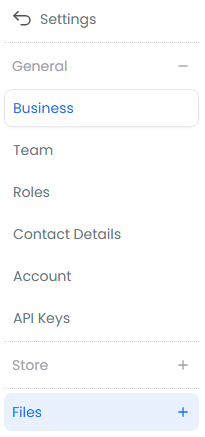
- Select Exports

- Select Export to start a new export

- Select the data type you want to export
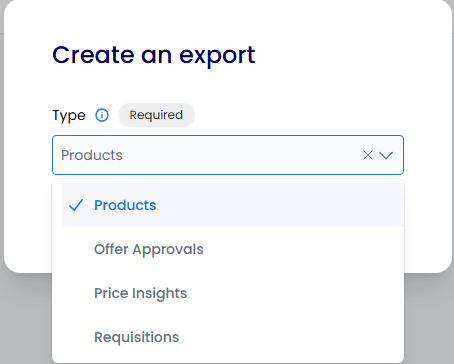
- Confirm your selections and select Generate to create the export
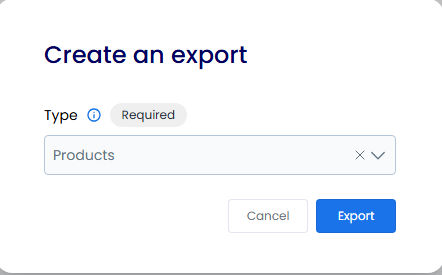
- Download the generated file once the export completes

Available Export Types
| Export Type | Description | Common Use Cases |
|---|---|---|
| Products | Product catalogue data | Bulk product updates, inventory management |
| Requisitions | Requisition history and details | Requisition tracking, financial reporting |
| Analytics | Performance metrics | Business insights, trend analysis |
| Price Lists | Pricing information | Price management, market analysis |
| Stock Levels | Inventory data | Stock management, replenishment planning |
For the full list of available export types — and a field-by-field reference explaining every column in each CSV file — see the Exports reference.
Tip
Schedule regular exports of critical data so you always have current information for decision-making and reliable backups.